

Open a Web GUI Project in Python
From PhotonForge 2.2, the web GUI shows your projects, but you cannot edit them there. To edit a project, load it in Python and show it in the local GUI.
In this notebook, you will learn how to:
- Find a web GUI project by its name.
- Load the project in Python.
- Show a component of the project in the local GUI.
- Save your changes to the project.
You need PhotonForge 2.2 or newer and your Tidy3D API key (tidy3d configure).
To install PhotonForge, see Installation.
1. Your project in the web GUI
Section titled “1. Your project in the web GUI”The Projects page of the web GUI lists your projects. This notebook uses the project LiveViewer edit demo.
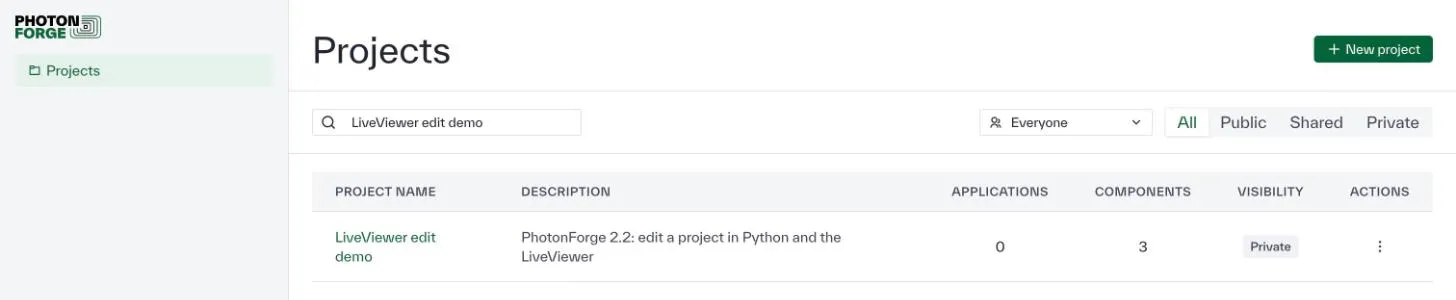
Click the project. The Components tab shows the components of the project.
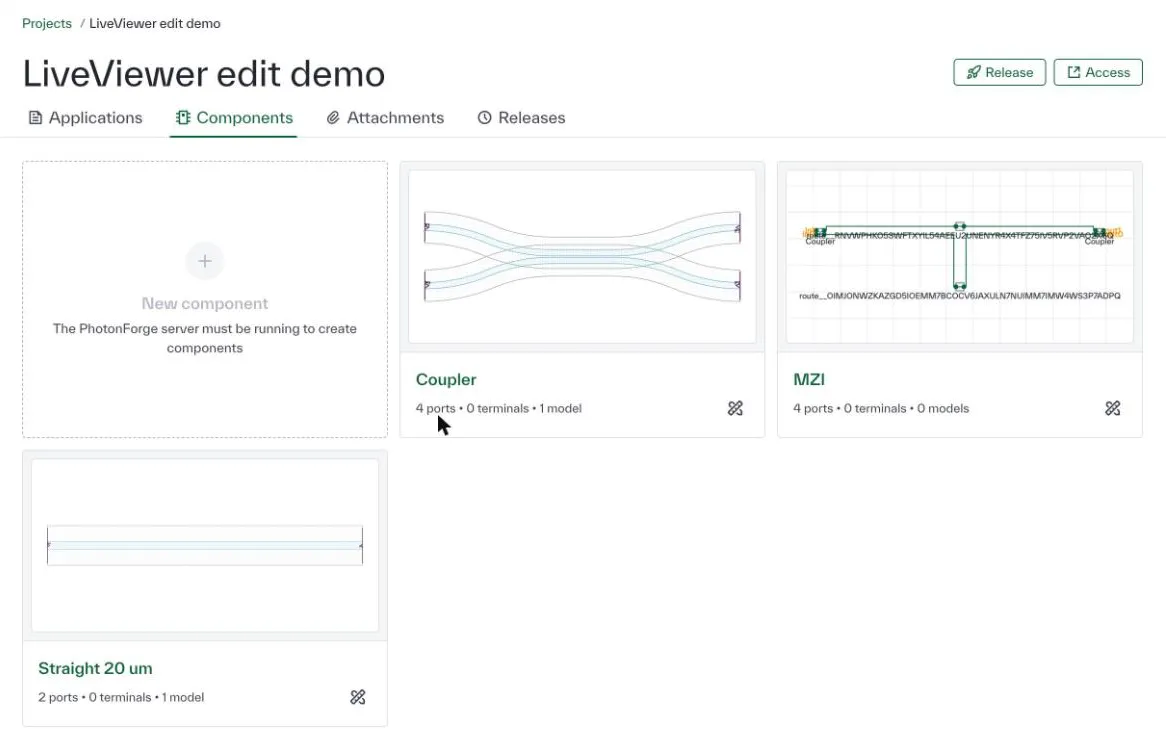
Click a component. The Overview tab shows its schematic and its layout. You can look at them, but you cannot edit them.
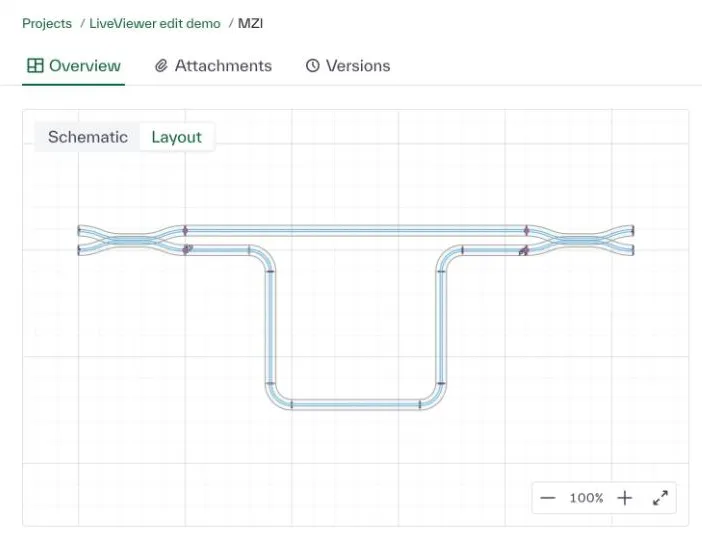
Remember the name of the project. You use it in step 3.
2. Connect to your projects
Section titled “2. Connect to your projects”Import the PDA module and the local GUI. pda.init connects to your projects with your Tidy3D API key.
import photonforge.pda as pdafrom photonforge.live_viewer import LiveViewer
pda.init()
If pda.init() fails with CERTIFICATE_VERIFY_FAILED on macOS, your Python from python.org does not have its root certificates yet.
To install them, run the Install Certificates.command that is in the folder of your Python version in Applications:
open "/Applications/Python 3.12/Install Certificates.command"Change 3.12 to your Python version, then restart the notebook kernel.
For more information, see Installation steps in the Python documentation.
3. Find your project
Section titled “3. Find your project”Put the name of your project in PROJECT_NAME.
pda.list_projects lists the projects that you can open.
It opens each project to read its name, so it takes approximately 0.3 s for each project.
PROJECT_NAME = "LiveViewer edit demo"
projects = pda.list_projects()
# Keep the projects with this namematches = [p for p in projects if p["name"] == PROJECT_NAME]if not matches:    raise ValueError(f"No project has the name {PROJECT_NAME!r}")
for p in matches:    print(p["createdAt"][:10], p["documentId"])
2026-11-23 32ME6QdFduCK7TacvwnVAcNpGNzw4. Load the project
Section titled “4. Load the project”Two projects can have the same name. This code loads the newest one with pda.load_project.
newest = max(matches, key=lambda p: p["createdAt"])project = pda.load_project(project_id=newest["documentId"])
# Show the names of the components in the projectlist(project.components(origin="self"))
['Coupler', 'MZI', 'Straight 20 um']load_project sets the technology of the project as the default technology.
It also writes the Python code of the project in a pflibs folder in the working directory.
A schematic that you saved in the old web GUI is a component of the project.
The old web GUI gave it the name Component if you did not change the name.
A schematic that you did not save is not in this list.
5. Show a component in the local GUI
Section titled “5. Show a component in the local GUI”Project.component gets a component by its name. The local GUI runs on your computer, not in the cloud.
# Use a name from the list abovecomponent = project.component("MZI")
# Start the local GUI on port 8841 and show the componentviewer = LiveViewer(port=8841)viewer(component)
LiveViewer started at http://127.0.0.1:8841. Call its 'stop()' method to free the port.;fill:%23221f20;font-weight:bold;font-size:2.254000px;}.terminal{fill:none;stroke:%23805080;stroke-width:0.281750;}.dashed{stroke-dasharray:1.408750,0.845250;}.port{fill:none;stroke:%23805080;stroke-width:0.563500;}.virtual-connection{fill:none;stroke:%23907090;stroke-width:0.422625;}.layer_5_0{stroke:%23998573;fill:url(%23pat-layer_5_0);fill-opacity:0.492;}.label_5_0{fill:%23998573;}.layer_3_0{stroke:%238851ad;fill:url(%23pat-layer_3_0);fill-opacity:0.492;}.label_3_0{fill:%238851ad;}.layer_4_0{stroke:%23535e59;fill:url(%23pat-layer_4_0);fill-opacity:0.492;}.label_4_0{fill:%23535e59;}.layer_1_0{stroke:%23858d89;fill:url(%23pat-layer_1_0);fill-opacity:0.492;}.label_1_0{fill:%23858d89;}.layer_2_0{stroke:%235b98b9;fill:url(%23pat-layer_2_0);fill-opacity:0.492;}.label_2_0{fill:%235b98b9;}</style><defs><path id=%22port-symbol%22 class=%22port%22 d=%22M 0,-1.127000 L 1.690500,0 0,1.127000%22 /><path id=%22ref-port-symbol%22 class=%22port%22 style=%22stroke-opacity:0.33;%22 d=%22M 0,-0.845250 C 1.127000,-0.845250 1.127000,0.845250 0,0.845250%22 /><circle id=%22port-bend-symbol%22 style=%22stroke-width:0;stroke:none;fill:%23805080;fill-opacity:1;%22 cx=%220%22 cy=%220%22 r=%220.507150%22 /><circle id=%22connection-symbol%22 style=%22stroke-width:0;stroke:none;fill:%23907090;fill-opacity:1;%22 cx=%220%22 cy=%220%22 r=%220.591675%22 /><pattern id=%22pat-layer_5_0%22 patternUnits=%22userSpaceOnUse%22 width=%221.408750%22 height=%221.408750%22 patternTransform=%22translate(0.082868,1.260461)%22><line x1=%221.408750%22 y1=%220%22 x2=%220%22 y2=%221.408750%22 style=%22stroke:%23998573;stroke-width:0.140875%22 /><line x1=%222.113125%22 y1=%220.704375%22 x2=%220.704375%22 y2=%222.113125%22 style=%22stroke:%23998573;stroke-width:0.140875%22 /><line x1=%220.704375%22 y1=%22-0.704375%22 x2=%22-0.704375%22 y2=%220.704375%22 style=%22stroke:%23998573;stroke-width:0.140875%22 /></pattern><pattern id=%22pat-layer_3_0%22 patternUnits=%22userSpaceOnUse%22 width=%220.845250%22 height=%220.845250%22 patternTransform=%22translate(0.198882,0.622816)%22><circle cx=%220.422625%22 cy=%220.422625%22 r=%220.140875%22 style=%22stroke:none;fill:%238851ad;fill-opacity:1.0%22 /></pattern><pattern id=%22pat-layer_4_0%22 patternUnits=%22userSpaceOnUse%22 width=%221.408750%22 height=%221.408750%22 patternTransform=%22translate(0.911544,0.444868)%22><line x1=%220.704375%22 y1=%220%22 x2=%220.704375%22 y2=%221.408750%22 style=%22stroke:%23535e59;stroke-width:0.140875%22 /><line x1=%220%22 y1=%220.704375%22 x2=%221.408750%22 y2=%220.704375%22 style=%22stroke:%23535e59;stroke-width:0.140875%22 /></pattern><pattern id=%22pat-layer_1_0%22 patternUnits=%22userSpaceOnUse%22 width=%221.408750%22 height=%221.408750%22 patternTransform=%22translate(0.580074,0.815592)%22><circle cx=%220.704375%22 cy=%220.704375%22 r=%220.140875%22 style=%22stroke:none;fill:%23858d89;fill-opacity:1.0%22 /></pattern><pattern id=%22pat-layer_2_0%22 patternUnits=%22userSpaceOnUse%22 width=%221.408750%22 height=%221.408750%22 patternTransform=%22translate(1.160147,0.222434)%22><line x1=%220%22 y1=%220%22 x2=%221.408750%22 y2=%221.408750%22 style=%22stroke:%235b98b9;stroke-width:0.140875%22 /><line x1=%22-0.704375%22 y1=%220.704375%22 x2=%220.704375%22 y2=%222.113125%22 style=%22stroke:%235b98b9;stroke-width:0.140875%22 /><line x1=%220.704375%22 y1=%22-0.704375%22 x2=%222.113125%22 y2=%220.704375%22 style=%22stroke:%235b98b9;stroke-width:0.140875%22 /></pattern><g id=%22C1%22 data-name=%22Coupler%22><path class=%22layer_1_0%22 d=%22M 0.000000,-1.250000 0.469000,-1.242000 0.937000,-1.219000 1.404000,-1.181000 1.870000,-1.127000 2.334000,-1.058000 2.795000,-0.973000 3.253000,-0.874000 3.707000,-0.759000 4.158000,-0.630000 4.604000,-0.486000 5.045000,-0.327000 5.481000,-0.154000 5.840000,-0.011000 6.204000,0.120000 6.572000,0.239000 6.943000,0.345000 7.318000,0.440000 7.696000,0.522000 8.076000,0.591000 8.458000,0.648000 8.842000,0.693000 9.227000,0.725000 9.614000,0.744000 10.000000,0.750000 15.000000,0.750000 15.387000,0.744000 15.773000,0.725000 16.158000,0.693000 16.542000,0.648000 16.924000,0.591000 17.304000,0.522000 17.682000,0.440000 18.057000,0.345000 18.428000,0.239000 18.796000,0.120000 19.160000,-0.011000 19.519000,-0.154000 19.955000,-0.327000 20.396000,-0.486000 20.842000,-0.630000 21.293000,-0.759000 21.747000,-0.874000 22.205000,-0.973000 22.666000,-1.058000 23.130000,-1.127000 23.596000,-1.181000 24.063000,-1.219000 24.531000,-1.242000 25.000000,-1.250000 25.000000,1.250000 24.614000,1.256000 24.227000,1.275000 23.842000,1.307000 23.458000,1.352000 23.076000,1.409000 22.696000,1.478000 22.318000,1.560000 21.943000,1.655000 21.572000,1.761000 21.204000,1.880000 20.840000,2.011000 20.481000,2.154000 20.045000,2.327000 19.604000,2.486000 19.158000,2.630000 18.707000,2.759000 18.253000,2.874000 17.795000,2.973000 17.334000,3.058000 16.870000,3.127000 16.404000,3.181000 15.937000,3.219000 15.469000,3.242000 15.000000,3.250000 10.000000,3.250000 9.531000,3.242000 9.063000,3.219000 8.596000,3.181000 8.130000,3.127000 7.666000,3.058000 7.205000,2.973000 6.747000,2.874000 6.293000,2.759000 5.842000,2.630000 5.396000,2.486000 4.955000,2.327000 4.519000,2.154000 4.160000,2.011000 3.796000,1.880000 3.428000,1.761000 3.057000,1.655000 2.682000,1.560000 2.304000,1.478000 1.924000,1.409000 1.542000,1.352000 1.158000,1.307000 0.773000,1.275000 0.387000,1.256000 0.000000,1.250000 z%22 /><path class=%22layer_1_0%22 d=%22M 25.000000,5.850000 24.531000,5.842000 24.063000,5.819000 23.596000,5.781000 23.130000,5.727000 22.666000,5.658000 22.205000,5.573000 21.747000,5.474000 21.293000,5.359000 20.842000,5.230000 20.396000,5.086000 19.955000,4.927000 19.519000,4.754000 19.160000,4.611000 18.796000,4.480000 18.428000,4.361000 18.057000,4.255000 17.682000,4.160000 17.304000,4.078000 16.924000,4.009000 16.542000,3.952000 16.158000,3.907000 15.773000,3.875000 15.387000,3.856000 15.000000,3.850000 10.000000,3.850000 9.614000,3.856000 9.227000,3.875000 8.842000,3.907000 8.458000,3.952000 8.076000,4.009000 7.696000,4.078000 7.318000,4.160000 6.943000,4.255000 6.572000,4.361000 6.204000,4.480000 5.840000,4.611000 5.481000,4.754000 5.045000,4.927000 4.604000,5.086000 4.158000,5.230000 3.707000,5.359000 3.253000,5.474000 2.795000,5.573000 2.334000,5.658000 1.870000,5.727000 1.404000,5.781000 0.937000,5.819000 0.469000,5.842000 0.000000,5.850000 0.000000,3.350000 0.387000,3.344000 0.773000,3.325000 1.158000,3.293000 1.542000,3.248000 1.924000,3.191000 2.304000,3.122000 2.682000,3.040000 3.057000,2.945000 3.428000,2.839000 3.796000,2.720000 4.160000,2.589000 4.519000,2.446000 4.955000,2.273000 5.396000,2.114000 5.842000,1.970000 6.293000,1.841000 6.747000,1.726000 7.205000,1.627000 7.666000,1.542000 8.130000,1.473000 8.596000,1.419000 9.063000,1.381000 9.531000,1.358000 10.000000,1.350000 15.000000,1.350000 15.469000,1.358000 15.937000,1.381000 16.404000,1.419000 16.870000,1.473000 17.334000,1.542000 17.795000,1.627000 18.253000,1.726000 18.707000,1.841000 19.158000,1.970000 19.604000,2.114000 20.045000,2.273000 20.481000,2.446000 20.840000,2.589000 21.204000,2.720000 21.572000,2.839000 21.943000,2.945000 22.318000,3.040000 22.696000,3.122000 23.076000,3.191000 23.458000,3.248000 23.842000,3.293000 24.227000,3.325000 24.614000,3.344000 25.000000,3.350000 z%22 /><path class=%22layer_2_0%22 d=%22M 0.000000,-0.250000 0.436000,-0.243000 0.871000,-0.221000 1.306000,-0.186000 1.739000,-0.135000 2.170000,-0.071000 2.599000,0.007000 3.025000,0.100000 3.447000,0.206000 3.866000,0.327000 4.281000,0.461000 4.691000,0.608000 5.096000,0.769000 5.486000,0.924000 5.881000,1.066000 6.280000,1.195000 6.683000,1.311000 7.090000,1.413000 7.500000,1.502000 7.912000,1.578000 8.327000,1.640000 8.744000,1.688000 9.162000,1.722000 9.581000,1.743000 10.000000,1.750000 15.000000,1.750000 15.419000,1.743000 15.838000,1.722000 16.256000,1.688000 16.673000,1.640000 17.088000,1.578000 17.500000,1.502000 17.910000,1.413000 18.317000,1.311000 18.720000,1.195000 19.119000,1.066000 19.514000,0.924000 19.904000,0.769000 20.309000,0.608000 20.719000,0.461000 21.134000,0.327000 21.553000,0.206000 21.975000,0.100000 22.401000,0.007000 22.830000,-0.071000 23.261000,-0.135000 23.694000,-0.186000 24.129000,-0.221000 24.564000,-0.243000 25.000000,-0.250000 25.000000,0.250000 24.581000,0.257000 24.162000,0.278000 23.744000,0.312000 23.327000,0.360000 22.912000,0.422000 22.500000,0.498000 22.090000,0.587000 21.683000,0.689000 21.280000,0.805000 20.881000,0.934000 20.486000,1.076000 20.096000,1.231000 19.691000,1.392000 19.281000,1.539000 18.866000,1.673000 18.447000,1.794000 18.025000,1.900000 17.599000,1.993000 17.170000,2.071000 16.739000,2.135000 16.306000,2.186000 15.871000,2.221000 15.436000,2.243000 15.000000,2.250000 10.000000,2.250000 9.564000,2.243000 9.129000,2.221000 8.694000,2.186000 8.261000,2.135000 7.830000,2.071000 7.401000,1.993000 6.975000,1.900000 6.553000,1.794000 6.134000,1.673000 5.719000,1.539000 5.309000,1.392000 4.904000,1.231000 4.514000,1.076000 4.119000,0.934000 3.720000,0.805000 3.317000,0.689000 2.910000,0.587000 2.500000,0.498000 2.088000,0.422000 1.673000,0.360000 1.256000,0.312000 0.838000,0.278000 0.419000,0.257000 0.000000,0.250000 z%22 /><path class=%22layer_2_0%22 d=%22M 25.000000,4.850000 24.564000,4.843000 24.129000,4.821000 23.694000,4.786000 23.261000,4.735000 22.830000,4.671000 22.401000,4.593000 21.975000,4.500000 21.553000,4.394000 21.134000,4.273000 20.719000,4.139000 20.309000,3.992000 19.904000,3.831000 19.514000,3.676000 19.119000,3.534000 18.720000,3.405000 18.317000,3.289000 17.910000,3.187000 17.500000,3.098000 17.088000,3.022000 16.673000,2.960000 16.256000,2.912000 15.838000,2.878000 15.419000,2.857000 15.000000,2.850000 10.000000,2.850000 9.581000,2.857000 9.162000,2.878000 8.744000,2.912000 8.327000,2.960000 7.912000,3.022000 7.500000,3.098000 7.090000,3.187000 6.683000,3.289000 6.280000,3.405000 5.881000,3.534000 5.486000,3.676000 5.096000,3.831000 4.691000,3.992000 4.281000,4.139000 3.866000,4.273000 3.447000,4.394000 3.025000,4.500000 2.599000,4.593000 2.170000,4.671000 1.739000,4.735000 1.306000,4.786000 0.871000,4.821000 0.436000,4.843000 0.000000,4.850000 0.000000,4.350000 0.419000,4.343000 0.838000,4.322000 1.256000,4.288000 1.673000,4.240000 2.088000,4.178000 2.500000,4.102000 2.910000,4.013000 3.317000,3.911000 3.720000,3.795000 4.119000,3.666000 4.514000,3.524000 4.904000,3.369000 5.309000,3.208000 5.719000,3.061000 6.134000,2.927000 6.553000,2.806000 6.975000,2.700000 7.401000,2.607000 7.830000,2.529000 8.261000,2.465000 8.694000,2.414000 9.129000,2.379000 9.564000,2.357000 10.000000,2.350000 15.000000,2.350000 15.436000,2.357000 15.871000,2.379000 16.306000,2.414000 16.739000,2.465000 17.170000,2.529000 17.599000,2.607000 18.025000,2.700000 18.447000,2.806000 18.866000,2.927000 19.281000,3.061000 19.691000,3.208000 20.096000,3.369000 20.486000,3.524000 20.881000,3.666000 21.280000,3.795000 21.683000,3.911000 22.090000,4.013000 22.500000,4.102000 22.912000,4.178000 23.327000,4.240000 23.744000,4.288000 24.162000,4.322000 24.581000,4.343000 25.000000,4.350000 z%22 /></g><g id=%22C2%22 data-name=%22route__RNVWPHKO5SWFTXYIL54AEEU2UNENYR4X4TFZ75IV5RVP2VAO2X6Q%22><use transform=%22translate(25.000000 4.600000)%22 href=%22%23C4%22 /></g><g id=%22C3%22 data-name=%22route__OIMJONWZKAZGD5IOEMM7BCOCV6JAXULN7NUIMM7IMW4WS3P7ADPQ%22><use transform=%22translate(25.000000 0.000000)%22 href=%22%23C5%22 /><use transform=%22translate(40.000000 0.000000)%22 href=%22%23C6%22 /><use transform=%22translate(45.000000 -5.000000) rotate(270.000000)%22 href=%22%23C7%22 /><use transform=%22translate(45.000000 -31.250000) rotate(270.000000)%22 href=%22%23C8%22 /><use transform=%22translate(50.000000 -36.250000)%22 href=%22%23C9%22 /><use transform=%22translate(80.000000 -36.250000)%22 href=%22%23C8%22 /><use transform=%22translate(85.000000 -31.250000) rotate(450.000000)%22 href=%22%23C7%22 /><use transform=%22translate(85.000000 -5.000000) rotate(450.000000)%22 href=%22%23C6%22 /><use transform=%22translate(90.000000 0.000000) rotate(360.000000)%22 href=%22%23C5%22 /></g><g id=%22C4%22 data-name=%22straight__UYHCBDKWC6A7J6GHWRN75AL2SEX6J2Q2PLNNCYQPQAEPNI353KOA%22><path class=%22layer_1_0%22 d=%22M 0.000000,-1.250000 80.000000,-1.250000 80.000000,1.250000 0.000000,1.250000 z%22 /><path class=%22layer_2_0%22 d=%22M 0.000000,-0.250000 80.000000,-0.250000 80.000000,0.250000 0.000000,0.250000 z%22 /></g><g id=%22C5%22 data-name=%22straight__HLBXLOUQPZEY4ZFJSJL2GSNHF5TLIKP3BJLBJZHNKFPGPE4LB5MA%22><path class=%22layer_1_0%22 d=%22M 0.000000,-1.250000 15.000000,-1.250000 15.000000,1.250000 0.000000,1.250000 z%22 /><path class=%22layer_2_0%22 d=%22M 0.000000,-0.250000 15.000000,-0.250000 15.000000,0.250000 0.000000,0.250000 z%22 /></g><g id=%22C6%22 data-name=%22bend__NAHVOZ3F6M7TWPOXJSEP5CZ6LHGUJM6GNIJQXPRJVVOGXQTHVCWA%22><path class=%22layer_1_0%22 d=%22M 0.000000,-1.250000 0.346000,-1.266000 0.689000,-1.314000 1.026000,-1.393000 1.355000,-1.503000 1.672000,-1.643000 1.974000,-1.812000 2.260000,-2.007000 2.526000,-2.229000 2.771000,-2.474000 2.993000,-2.740000 3.188000,-3.026000 3.357000,-3.328000 3.497000,-3.645000 3.607000,-3.974000 3.686000,-4.311000 3.734000,-4.654000 3.750000,-5.000000 6.250000,-5.000000 6.243000,-4.711000 6.223000,-4.423000 6.190000,-4.137000 6.144000,-3.852000 6.084000,-3.569000 6.011000,-3.290000 5.926000,-3.014000 5.828000,-2.742000 5.717000,-2.475000 5.595000,-2.214000 5.460000,-1.959000 5.314000,-1.710000 5.156000,-1.468000 4.988000,-1.234000 4.808000,-1.007000 4.619000,-0.789000 4.419000,-0.581000 4.211000,-0.381000 3.993000,-0.192000 3.766000,-0.012000 3.532000,0.156000 3.290000,0.314000 3.041000,0.460000 2.786000,0.595000 2.525000,0.717000 2.258000,0.828000 1.986000,0.926000 1.710000,1.011000 1.431000,1.084000 1.148000,1.144000 0.863000,1.190000 0.577000,1.223000 0.289000,1.243000 0.000000,1.250000 z%22 /><path class=%22layer_2_0%22 d=%22M 0.000000,-0.250000 0.438000,-0.270000 0.873000,-0.331000 1.088000,-0.376000 1.300000,-0.431000 1.510000,-0.496000 1.919000,-0.655000 2.311000,-0.850000 2.501000,-0.961000 2.863000,-1.209000 3.200000,-1.490000 3.359000,-1.641000 3.654000,-1.965000 3.791000,-2.137000 4.039000,-2.499000 4.252000,-2.883000 4.345000,-3.081000 4.504000,-3.490000 4.569000,-3.700000 4.624000,-3.912000 4.669000,-4.127000 4.730000,-4.562000 4.750000,-5.000000 5.250000,-5.000000 5.228000,-4.516000 5.200000,-4.275000 5.161000,-4.035000 5.111000,-3.798000 5.050000,-3.563000 4.978000,-3.332000 4.895000,-3.103000 4.803000,-2.879000 4.700000,-2.660000 4.587000,-2.445000 4.464000,-2.236000 4.190000,-1.836000 4.039000,-1.646000 3.880000,-1.463000 3.537000,-1.120000 3.354000,-0.961000 3.164000,-0.810000 2.764000,-0.536000 2.555000,-0.413000 2.340000,-0.300000 2.121000,-0.197000 1.897000,-0.105000 1.668000,-0.022000 1.437000,0.050000 1.202000,0.111000 0.965000,0.161000 0.725000,0.200000 0.484000,0.228000 0.242000,0.244000 0.000000,0.250000 z%22 /></g><g id=%22C7%22 data-name=%22straight__X2XM73WRWVTYZNEAX62PLY5JEQH52WUHTDBSTXKXMW22LFWLZ6YA%22><path class=%22layer_1_0%22 d=%22M 0.000000,-1.250000 26.250000,-1.250000 26.250000,1.250000 0.000000,1.250000 z%22 /><path class=%22layer_2_0%22 d=%22M 0.000000,-0.250000 26.250000,-0.250000 26.250000,0.250000 0.000000,0.250000 z%22 /></g><g id=%22C8%22 data-name=%22bend__ZMMDUZREMBMDK76TKWHLXQS74HUJ6QUN2LUERWIHKHZMSKTPZSPA%22><path class=%22layer_1_0%22 d=%22M 0.000000,-1.250000 0.289000,-1.243000 0.577000,-1.223000 0.863000,-1.190000 1.148000,-1.144000 1.431000,-1.084000 1.710000,-1.011000 1.986000,-0.926000 2.258000,-0.828000 2.525000,-0.717000 2.786000,-0.595000 3.041000,-0.460000 3.290000,-0.314000 3.532000,-0.156000 3.766000,0.012000 3.993000,0.192000 4.211000,0.381000 4.419000,0.581000 4.619000,0.789000 4.808000,1.007000 4.988000,1.234000 5.156000,1.468000 5.314000,1.710000 5.460000,1.959000 5.595000,2.214000 5.717000,2.475000 5.828000,2.742000 5.926000,3.014000 6.011000,3.290000 6.084000,3.569000 6.144000,3.852000 6.190000,4.137000 6.223000,4.423000 6.243000,4.711000 6.250000,5.000000 3.750000,5.000000 3.734000,4.654000 3.686000,4.311000 3.607000,3.974000 3.497000,3.645000 3.357000,3.328000 3.188000,3.026000 2.993000,2.740000 2.771000,2.474000 2.526000,2.229000 2.260000,2.007000 1.974000,1.812000 1.672000,1.643000 1.355000,1.503000 1.026000,1.393000 0.689000,1.314000 0.346000,1.266000 0.000000,1.250000 z%22 /><path class=%22layer_2_0%22 d=%22M 0.000000,-0.250000 0.242000,-0.244000 0.484000,-0.228000 0.725000,-0.200000 0.965000,-0.161000 1.202000,-0.111000 1.437000,-0.050000 1.668000,0.022000 1.897000,0.105000 2.121000,0.197000 2.340000,0.300000 2.555000,0.413000 2.764000,0.536000 3.164000,0.810000 3.354000,0.961000 3.537000,1.120000 3.880000,1.463000 4.039000,1.646000 4.190000,1.836000 4.464000,2.236000 4.587000,2.445000 4.700000,2.660000 4.803000,2.879000 4.895000,3.103000 4.978000,3.332000 5.050000,3.563000 5.111000,3.798000 5.161000,4.035000 5.200000,4.275000 5.228000,4.516000 5.250000,5.000000 4.750000,5.000000 4.730000,4.562000 4.669000,4.127000 4.624000,3.912000 4.569000,3.700000 4.504000,3.490000 4.345000,3.081000 4.252000,2.883000 4.039000,2.499000 3.791000,2.137000 3.654000,1.965000 3.359000,1.641000 3.200000,1.490000 2.863000,1.209000 2.501000,0.961000 2.311000,0.850000 1.919000,0.655000 1.510000,0.496000 1.300000,0.431000 1.088000,0.376000 0.873000,0.331000 0.438000,0.270000 0.000000,0.250000 z%22 /></g><g id=%22C9%22 data-name=%22straight__FPR53462KGKE2LBDIFH7B4O63TQGB4LLXUIXBLVQQ547THAYLF4A%22><path class=%22layer_1_0%22 d=%22M 0.000000,-1.250000 30.000000,-1.250000 30.000000,1.250000 0.000000,1.250000 z%22 /><path class=%22layer_2_0%22 d=%22M 0.000000,-0.250000 30.000000,-0.250000 30.000000,0.250000 0.000000,0.250000 z%22 /></g></defs><g transform=%22scale(1 -1)%22><g id=%22C0%22 data-name=%22MZI%22><use transform=%22translate(0.000000 0.000000)%22 href=%22%23C1%22 /><use transform=%22translate(105.000000 0.000000)%22 href=%22%23C1%22 /><use transform=%22translate(0.000000 0.000000)%22 href=%22%23C2%22 /><use transform=%22translate(0.000000 0.000000)%22 href=%22%23C3%22 /><g transform=%22translate(0.000000 0.000000) rotate(0.000000)%22><path class=%22port%22 d=%22M 0,-1.125000 V 1.125000%22 /><use href=%22%23port-symbol%22 /></g><text class=%22label%22 text-anchor=%22start%22 dominant-baseline=%22text-after-edge%22 x=%220.000000%22 y=%22-0.000000%22>in0</text><g transform=%22translate(0.000000 4.600000) rotate(0.000000)%22><path class=%22port%22 d=%22M 0,-1.125000 V 1.125000%22 /><use href=%22%23port-symbol%22 /></g><text class=%22label%22 text-anchor=%22start%22 dominant-baseline=%22text-after-edge%22 x=%220.000000%22 y=%22-4.600000%22>in1</text><g transform=%22translate(130.000000 0.000000) rotate(-180.000000)%22><path class=%22port%22 d=%22M 0,-1.125000 V 1.125000%22 /><use href=%22%23port-symbol%22 /></g><text class=%22label%22 text-anchor=%22end%22 dominant-baseline=%22text-after-edge%22 x=%22130.000000%22 y=%22-0.000000%22>out0</text><g transform=%22translate(130.000000 4.600000) rotate(180.000000)%22><path class=%22port%22 d=%22M 0,-1.125000 V 1.125000%22 /><use href=%22%23port-symbol%22 /></g><text class=%22label%22 text-anchor=%22end%22 dominant-baseline=%22text-before-edge%22 x=%22130.000000%22 y=%22-4.600000%22>out1</text></g></g></svg>)
%22><use href=%22%23g-dc%22 transform=%22translate(-30.00 -30.00) scale(1.2)%22/><circle cx=%22-30.00%22 cy=%22-6.54%22 r=%224%22 fill=%22%2300643c%22 stroke=%22%2300643c%22 stroke-width=%221%22/><circle cx=%22-30.00%22 cy=%2210.05%22 r=%224%22 fill=%22%2300643c%22 stroke=%22%2300643c%22 stroke-width=%221%22/><circle cx=%2230.00%22 cy=%22-6.51%22 r=%224%22 fill=%22%2300643c%22 stroke=%22%2300643c%22 stroke-width=%221%22/><circle cx=%2230.00%22 cy=%2210.17%22 r=%224%22 fill=%22%2300643c%22 stroke=%22%2300643c%22 stroke-width=%221%22/></g><text x=%220.00%22 y=%2231.80%22 font-size=%229%22 fill=%22%23232530%22 font-weight=%22400%22 text-anchor=%22middle%22 dominant-baseline=%22hanging%22 stroke=%22%23ffffff%22 stroke-width=%223.15%22 stroke-linejoin=%22round%22 paint-order=%22stroke%22>Coupler_1</text><text x=%22-42.00%22 y=%22-6.54%22 font-size=%2210%22 fill=%22%23b8461c%22 font-weight=%22700%22 text-anchor=%22end%22 dominant-baseline=%22middle%22 stroke=%22%23ffffff%22 stroke-width=%223.50%22 stroke-linejoin=%22round%22 paint-order=%22stroke%22>in1</text><text x=%22-42.00%22 y=%2210.05%22 font-size=%2210%22 fill=%22%23b8461c%22 font-weight=%22700%22 text-anchor=%22end%22 dominant-baseline=%22middle%22 stroke=%22%23ffffff%22 stroke-width=%223.50%22 stroke-linejoin=%22round%22 paint-order=%22stroke%22>in0</text><g transform=%22matrix(1 -0 0 1 192.000 0.000)%22><use href=%22%23g-dc%22 transform=%22translate(-30.00 -30.00) scale(1.2)%22/><circle cx=%22-30.00%22 cy=%22-6.54%22 r=%224%22 fill=%22%2300643c%22 stroke=%22%2300643c%22 stroke-width=%221%22/><circle cx=%22-30.00%22 cy=%2210.05%22 r=%224%22 fill=%22%2300643c%22 stroke=%22%2300643c%22 stroke-width=%221%22/><circle cx=%2230.00%22 cy=%22-6.51%22 r=%224%22 fill=%22%2300643c%22 stroke=%22%2300643c%22 stroke-width=%221%22/><circle cx=%2230.00%22 cy=%2210.17%22 r=%224%22 fill=%22%2300643c%22 stroke=%22%2300643c%22 stroke-width=%221%22/></g><text x=%22192.00%22 y=%2231.80%22 font-size=%229%22 fill=%22%23232530%22 font-weight=%22400%22 text-anchor=%22middle%22 dominant-baseline=%22hanging%22 stroke=%22%23ffffff%22 stroke-width=%223.15%22 stroke-linejoin=%22round%22 paint-order=%22stroke%22>Coupler_2</text><text x=%22234.00%22 y=%22-6.51%22 font-size=%2210%22 fill=%22%23b8461c%22 font-weight=%22700%22 text-anchor=%22start%22 dominant-baseline=%22middle%22 stroke=%22%23ffffff%22 stroke-width=%223.50%22 stroke-linejoin=%22round%22 paint-order=%22stroke%22>out1</text><text x=%22234.00%22 y=%2210.17%22 font-size=%2210%22 fill=%22%23b8461c%22 font-weight=%22700%22 text-anchor=%22start%22 dominant-baseline=%22middle%22 stroke=%22%23ffffff%22 stroke-width=%223.50%22 stroke-linejoin=%22round%22 paint-order=%22stroke%22>out0</text><g fill=%22none%22 stroke-width=%222%22></g></svg>)
%22><use href=%22%23g-dc%22 transform=%22translate(-30.00 -30.00) scale(1.2)%22/><circle cx=%22-30.00%22 cy=%22-6.54%22 r=%224%22 fill=%22%2300643c%22 stroke=%22%2300643c%22 stroke-width=%221%22/><circle cx=%22-30.00%22 cy=%2210.05%22 r=%224%22 fill=%22%2300643c%22 stroke=%22%2300643c%22 stroke-width=%221%22/><circle cx=%2230.00%22 cy=%22-6.51%22 r=%224%22 fill=%22%2300643c%22 stroke=%22%2300643c%22 stroke-width=%221%22/><circle cx=%2230.00%22 cy=%2210.17%22 r=%224%22 fill=%22%2300643c%22 stroke=%22%2300643c%22 stroke-width=%221%22/></g><text x=%220.00%22 y=%2291.80%22 font-size=%229%22 fill=%22%23232530%22 font-weight=%22400%22 text-anchor=%22middle%22 dominant-baseline=%22hanging%22 stroke=%22%23ffffff%22 stroke-width=%223.15%22 stroke-linejoin=%22round%22 paint-order=%22stroke%22>Coupler_1</text><text x=%22-42.00%22 y=%2253.46%22 font-size=%2210%22 fill=%22%23b8461c%22 font-weight=%22700%22 text-anchor=%22end%22 dominant-baseline=%22middle%22 stroke=%22%23ffffff%22 stroke-width=%223.50%22 stroke-linejoin=%22round%22 paint-order=%22stroke%22>in1</text><text x=%22-42.00%22 y=%2270.05%22 font-size=%2210%22 fill=%22%23b8461c%22 font-weight=%22700%22 text-anchor=%22end%22 dominant-baseline=%22middle%22 stroke=%22%23ffffff%22 stroke-width=%223.50%22 stroke-linejoin=%22round%22 paint-order=%22stroke%22>in0</text><g transform=%22matrix(1 -0 0 1 384.000 -60.000)%22><use href=%22%23g-dc%22 transform=%22translate(-30.00 -30.00) scale(1.2)%22/><circle cx=%22-30.00%22 cy=%22-6.54%22 r=%224%22 fill=%22%2300643c%22 stroke=%22%2300643c%22 stroke-width=%221%22/><circle cx=%22-30.00%22 cy=%2210.05%22 r=%224%22 fill=%22%2300643c%22 stroke=%22%2300643c%22 stroke-width=%221%22/><circle cx=%2230.00%22 cy=%22-6.51%22 r=%224%22 fill=%22%2300643c%22 stroke=%22%2300643c%22 stroke-width=%221%22/><circle cx=%2230.00%22 cy=%2210.17%22 r=%224%22 fill=%22%2300643c%22 stroke=%22%2300643c%22 stroke-width=%221%22/></g><text x=%22384.00%22 y=%22-28.20%22 font-size=%229%22 fill=%22%23232530%22 font-weight=%22400%22 text-anchor=%22middle%22 dominant-baseline=%22hanging%22 stroke=%22%23ffffff%22 stroke-width=%223.15%22 stroke-linejoin=%22round%22 paint-order=%22stroke%22>Coupler_2</text><text x=%22426.00%22 y=%22-66.51%22 font-size=%2210%22 fill=%22%23b8461c%22 font-weight=%22700%22 text-anchor=%22start%22 dominant-baseline=%22middle%22 stroke=%22%23ffffff%22 stroke-width=%223.50%22 stroke-linejoin=%22round%22 paint-order=%22stroke%22>out1</text><text x=%22426.00%22 y=%22-49.83%22 font-size=%2210%22 fill=%22%23b8461c%22 font-weight=%22700%22 text-anchor=%22start%22 dominant-baseline=%22middle%22 stroke=%22%23ffffff%22 stroke-width=%223.50%22 stroke-linejoin=%22round%22 paint-order=%22stroke%22>out0</text><g transform=%22matrix(1 -0 0 1 192.000 -60.000)%22><use href=%22%23g-wg%22 transform=%22translate(-30.00 -30.00) scale(1.2)%22/><circle cx=%22-30.00%22 cy=%220.00%22 r=%224%22 fill=%22%2300643c%22 stroke=%22%2300643c%22 stroke-width=%221%22/><circle cx=%2230.00%22 cy=%220.00%22 r=%224%22 fill=%22%2300643c%22 stroke=%22%2300643c%22 stroke-width=%221%22/></g><text x=%22192.00%22 y=%22-28.20%22 font-size=%229%22 fill=%22%23232530%22 font-weight=%22400%22 text-anchor=%22middle%22 dominant-baseline=%22hanging%22 stroke=%22%23ffffff%22 stroke-width=%223.15%22 stroke-linejoin=%22round%22 paint-order=%22stroke%22>route</text><g transform=%22matrix(1 -0 0 1 192.000 60.000)%22><use href=%22%23g-wg%22 transform=%22translate(-30.00 -30.00) scale(1.2)%22/><circle cx=%22-30.00%22 cy=%220.00%22 r=%224%22 fill=%22%2300643c%22 stroke=%22%2300643c%22 stroke-width=%221%22/><circle cx=%2230.00%22 cy=%220.00%22 r=%224%22 fill=%22%2300643c%22 stroke=%22%2300643c%22 stroke-width=%221%22/></g><text x=%22192.00%22 y=%2291.80%22 font-size=%229%22 fill=%22%23232530%22 font-weight=%22400%22 text-anchor=%22middle%22 dominant-baseline=%22hanging%22 stroke=%22%23ffffff%22 stroke-width=%223.15%22 stroke-linejoin=%22round%22 paint-order=%22stroke%22>route</text><g fill=%22none%22 stroke-width=%222%22></g></svg>)
Open http://localhost:8841 in your browser. To edit the component in the local GUI, see Quick Start I: Local GUI.
6. Save your changes
Section titled “6. Save your changes”The local GUI changes component in your Python session.
Project.update saves it to the project, and the web GUI shows the changes.
CAUTION: project.update writes your copy of the component over the copy in the project.
If a teammate saved the same component after you loaded the project, their changes are lost.
project.update(viewer.component)print("Saved", viewer.component.name)Saved MZI7. Close the connections
Section titled “7. Close the connections”viewer.stop()pda.stop()LiveViewer stopped; port 8841 is free.Next steps
Section titled “Next steps”- Quick Start I: Local GUI builds and edits a circuit in the local GUI.
- Photonic Design Automation shows versions, libraries and how to share a project.