
Billing#
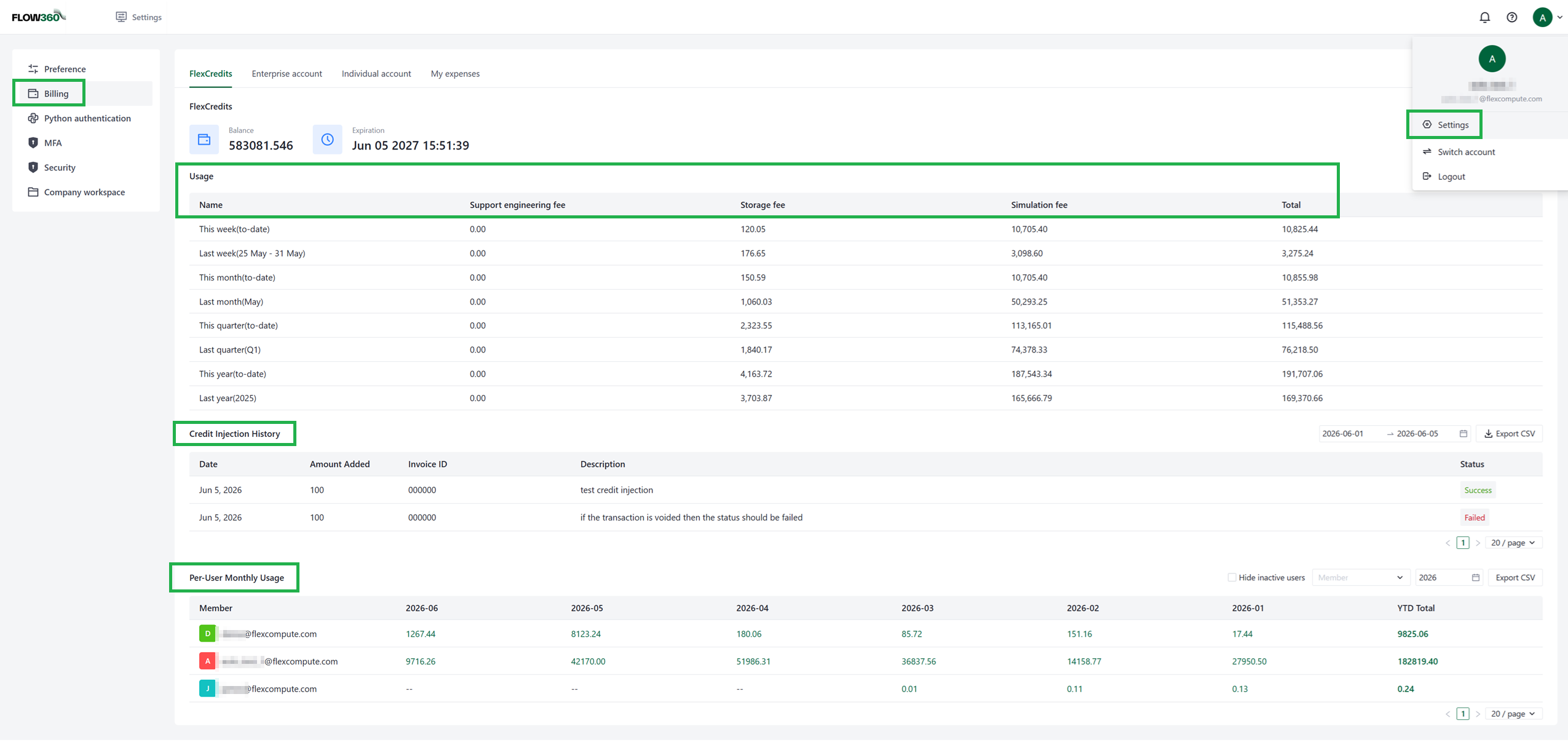
The Billing page brings your Flex Credit balance, storage usage, transaction history, and per-user usage breakdown together on a single screen.
Accessing the Billing Page#
The Billing page is part of your personal account settings in the Flow360 web UI.
To open it:
Click your account avatar (top-right corner of the Flow360 web UI).
Select Settings from the dropdown menu.
In the left-hand sidebar, click Billing.
Tabs Overview#
Tab |
Description |
|---|---|
FlexCredits |
Flex Credit balance and expiration, company-wide storage usage, a billing breakdown by period, credit injection history, and per-user monthly usage. |
Enterprise account |
Company-wide transaction history. Visible to account administrators only. |
Individual account |
Your personal transaction history. Shown as Transactions for non-administrator users. |
My expenses |
A pie chart and table of your monthly expenses, broken down by simulation, storage, and support engineering fees. |
FlexCredits#
The default tab, showing your balance and a full breakdown of credit usage.
Balance: Your current Flex Credit balance.
Expiration: The expiration date associated with your credits.
Company-wide storage: A usage bar showing your company’s storage consumption against its allocated limit. Warnings are shown as usage reaches 90%, 95%, and 100% of the limit; beyond 100%, additional storage is billed using the standard storage rate.
Usage: A table that breaks billing down by period (this week, last week, this month, and so on) into support engineering fee, storage fee, simulation fee, and total.
Credit Injection History: A table of credits added to your account (date, amount, invoice ID, description, and status), with a date-range filter and an Export CSV option.
Per-User Monthly Usage: A table breaking usage down per user and per month, with a year-to-date total, a year picker, a member filter, an option to hide inactive users, and an Export CSV option.
Note
The company-wide storage bar appears only for companies that have a company-wide storage agreement with Flexcompute. See the dashboard page for the matching dashboard widget.
Enterprise account#
Company-wide transaction history, visible to account administrators only.
The Enterprise account tab lists company-wide transactions (transaction ID, create time, type, description, amount, and reference transaction), with a date-range filter, an optional daily-cost view, a per-user (email) filter, and an Export CSV option.
Individual account#
Your personal transaction history.
The Individual account tab shows the same transaction table as the Enterprise account tab, filtered to your own transactions. For users who are not account administrators, this tab is labelled Transactions.
My expenses#
A visual breakdown of your monthly expenses.
The My expenses tab presents a pie chart and a table of your expenses for a selected month, split into simulation fee, storage fee, and support engineering fee. Use the year and month selectors to change the period shown.