
Dashboard#
The Flow360 GUI dashboard serves as the central hub for managing and monitoring your computational fluid dynamics (CFD) projects. This interface provides an intuitive overview of your simulations, resources, and project status.
Dashboard Components#
Component |
Description |
|---|---|
Recent |
Grid view of recent CFD projects with status indicators. |
FlexCredits |
Display of available computation credits. |
Company-wide storage |
Storage usage bar showing your company’s current consumption against its allocated limit. |
Pending resources |
Overview of computational resources in use, diverged, or failed. |
Start with the example |
Use a pre-prepared example to get accustomed to Flow360. |
See also
For the workflow and interface overview, see the User Guide: Workflows & Interfaces.
Detailed Descriptions#
Recent#
The main area displays a grid of recent project cards, showing your latest CFD simulations in chronological order.
Information shown for each project:
Project name and description
Number of surface meshes, volume meshes and cases
Divergence and error indicators
Last modification timestamp
New project button:
Create a new project
Refresh button:
Manually refresh all project resource statuses
Located next to New project button
FlexCredits#
Shows your current balance of computation credits.
Balance: Numerical value of your current FlexCredit balance.
Updates: Credits are consumed based on computational resources used.
Company-wide storage#
Displays your company’s total storage consumption relative to its allocated limit. This widget appears on the dashboard only for companies that have a company-wide storage agreement with Flexcompute.
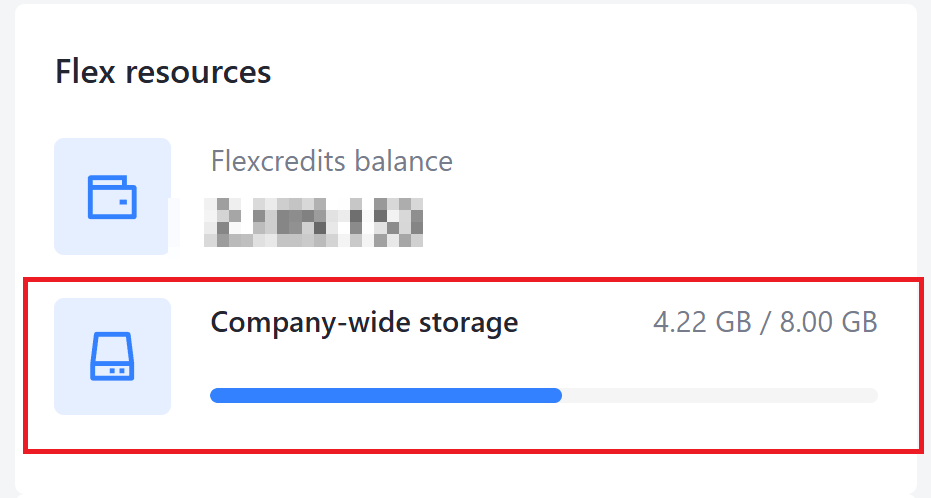
Usage bar: A horizontal progress bar shows the proportion of storage used. The label above the bar displays the current usage and the total limit (e.g. 4.22 GB / 8.00 GB).
Warning at 90% usage: When storage consumption reaches 90% of the allocated limit, a warning is displayed on the dashboard to alert all users in your company.
Overage billing at 100% usage: When the storage limit is fully reached, any additional storage consumed beyond the allocated limit is billed using the standard storage billing rules.
Note
The company-wide storage limit is available depending on your customer agreement. If you do not see this widget, your account uses the standard per-use billing model. Contact Flexcompute support for more information.
Pending resources#
Displays pending computational resources and their current status.
Information Shown:
Running jobs
Queue status
Errors and divergence
Note
Below Pending resources there is a visual representation of all project’s statuses called Projects.
Start with the example#
A quick-start option for new users to begin with Flow360.
Features:
Template for common simulation scenarios
Complete simulation setup
Sample geometries and volume meshes