
Hinge Torques Monitoring#
Note: The settings in this example are by no means a validation setup; they are crafted to showcase the capabilities of Flow360 and we have intentionally reduced node count and example FC cost. For rigorous validation, modify the settings as needed.
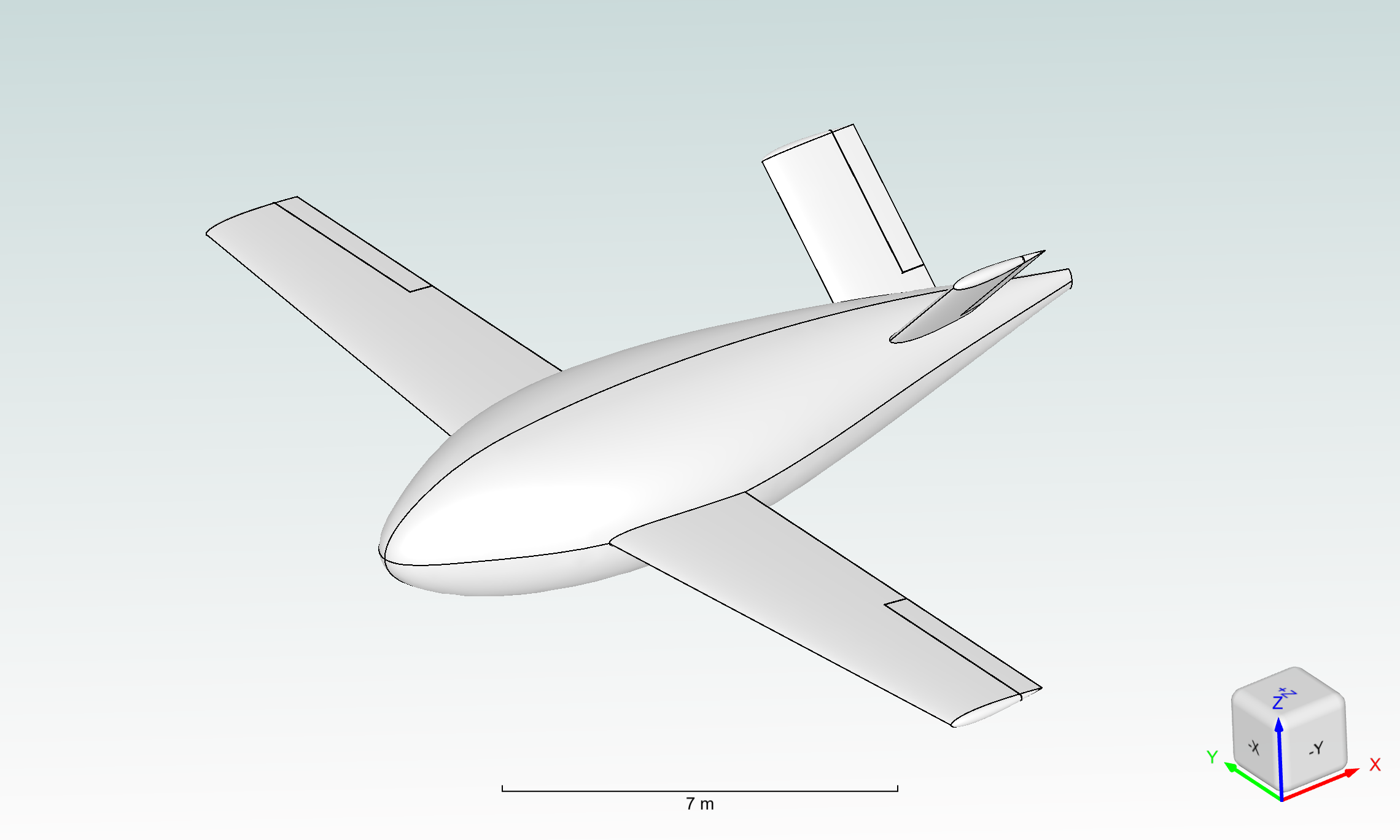
This tutorial will show how to set up a case where moments on specific surfaces are monitored throughout the simulation. The content will cover:
creating a project from a geometry,
meshing using the beta mesher and automated farfield,
setup of a steady case,
setup of
SurfaceIntegralOutputusingUserVariableto capture hinge moments on control surfaces,results postprocessing.
1. Imports and Project Creation#
To begin working with the Flow360 API it is necessary to firstly import the flow360 python package that will be the interface between you and the software. The files necessary for this example are being downloaded through the TutorialUDDForcesMoments example.
All simulations are managed through the Project object, which stores all the runs associated with a certain root asset. Root asset can be a geometry, surface mesh or volume mesh. In case of this tutorial the Project will be started from the geometry.
[1]:
import flow360 as fl
from flow360.examples import TutorialUDDForcesMoments
[2]:
TutorialUDDForcesMoments.get_files()

project = fl.Project.from_geometry(
    TutorialUDDForcesMoments.geometry, name="Monitoring hinge torques"
)
[10:16:16] INFO: Geometry successfully submitted:
                   type        = Geometry
                   name        = Monitoring hinge torques
                   id          = geo-ca5ad8b9-6320-4438-ba13-9b22704743f3
                   status      = uploaded
                   project id  = prj-c1642540-6862-4460-89f3-220e400aa909
INFO: Waiting for geometry to be processed.
If the Project has already been created before it is possible to retrieve it using its unique ID.
[3]:
# project=fl.Project.from_cloud("prj-e8aa4e7a-a6b8-47f5-97c4-7e64bbf76aeb")
Project contains all the information about its root asset, in this case - geometry. To be able to correctly reference it it is necessary to group the faces and edges by the attribute that was assigned to distinguish the faces in a CAD file.
[4]:
geometry = project.geometry

geometry.group_edges_by_tag("edgeName")
geometry.group_faces_by_tag("groupName")

print("Geometry boundaries:")
for boundary in geometry.entity_info.get_boundaries():
    print(f"- {boundary.name}")
[10:17:08] INFO: Regrouping face entities under `groupName` tag (previous `faceName`).
Geometry boundaries:
- vTailLeft
- fuselage
- wingLeft
- wingRight
- vTailRight
- rudderLeft
- rudderRight
- aileronLeft
- aileronRight
2. Meshing#
When the projects starts from the geometry it is necessary to set up the automated meshing workflow.
Firstly the AutomatedFarfield object is created to indicate that the geometry only contains the simulated object and the farfield has to be created around it.
Then the defaults for meshing are defined. Those are the “global” settings for the mesher.
[5]:
farfield = fl.AutomatedFarfield()

with fl.SI_unit_system:
    meshing = fl.MeshingParams(
        defaults=fl.MeshingDefaults(
            surface_max_edge_length=0.5,
            curvature_resolution_angle=10 * fl.u.deg,
            boundary_layer_first_layer_thickness=2e-6,
            boundary_layer_growth_rate=1.2,
        ),
        volume_zones=[farfield],
    )
[10:17:15] INFO: using: SI unit system for unit inference.
To refine specific parts of the mesh the refinements field is used, where user can define surface (such as SurfaceRefinement and SurfaceEdgeRefinement) and volumetric refinements (UniformRefinement).
It is worth to notice how the specific parts of the geometry are referenced using the geometry object. They can be then referenced using face names directly or through a wildcard entry (*).
[6]:
with fl.SI_unit_system:
    box1 = fl.Box(
        name="box1", size=[2, 6, 3], center=[6.5, 9, 0], axis_of_rotation=[0, 1, 0]
    )
    box2 = fl.Box(
        name="box2", size=[2, 6, 3], center=[6.5, -9, 0], axis_of_rotation=[0, 1, 0]
    )
    box3 = fl.Box(
        name="box3", size=[4, 8, 3], center=[12, 0, 2], axis_of_rotation=[0, 1, 0]
    )

    meshing.refinements.extend(
        [
            fl.SurfaceEdgeRefinement(
                method=fl.AngleBasedRefinement(value=1 * fl.u.deg),
                edges=[geometry["leadingEdge"]],
            ),
            fl.SurfaceEdgeRefinement(
                method=fl.HeightBasedRefinement(value=5e-3),
                edges=[geometry["trailingEdge"]],
            ),
            fl.SurfaceRefinement(max_edge_length=0.5, faces=[geometry["wing*"]]),
            fl.UniformRefinement(
                name="box_refinement1", entities=[box1, box2, box3], spacing=0.2
            ),
        ]
    )
[10:17:18] INFO: using: SI unit system for unit inference.
3. Boundary Conditions, Flow physics and numerics settings#
To describe the physical behaviour of the flow the Boundary Conditions or surface models are used. In this case the ones needed would be the Freestream condition that is assigned to the farfield and the Wall condition for the object. The Fluid model is a volume model that enables access to the controls of the fluid solver.
The operating_condition is responsible for defining the fluid behaviour at the freestream and is used to set the velocity, angle of attack and the thermal state of the fluid in this case.
reference_geometry defines values that are used as a reference when calculating various coefficients.
Finally time_stepping describes whether the simulation is steady or transient and how many time (or pseudo time) steps should be performed.
[7]:
with fl.SI_unit_system:
    reference_geometry = fl.ReferenceGeometry(
        area=60, moment_center=[5.7542, 0, 0], moment_length=[1, 1, 1]
    )
    operating_condition = fl.AerospaceCondition(
        velocity_magnitude=50,
        alpha=10 * fl.u.deg,
        atmosphere=fl.ThermalState(temperature=288.15),
    )
    models = [
        fl.Fluid(
            navier_stokes_solver=fl.NavierStokesSolver(
                absolute_tolerance=1e-9,
                linear_solver=fl.LinearSolver(max_iterations=35),
            ),
            turbulence_model_solver=fl.SpalartAllmaras(
                linear_solver=fl.LinearSolver(max_iterations=25)
            ),
        ),
        fl.Wall(
            surfaces=[geometry["*Left"], geometry["*Right"], geometry["fuselage"]],
        ),
        fl.Freestream(surfaces=[farfield.farfield]),
    ]
    time_stepping = fl.Steady(max_steps=5000)
[10:17:20] INFO: using: SI unit system for unit inference.
4. Definition of UserVariables#
In the next cell, we define several custom UserVariables to compute hinge torques for the control surfaces (right/left ailerons and right/left rudders). Each variable calculates the local contribution to the hinge torque by taking the moment (cross product) of the force per unit area about a specified torque center, and then projecting that moment onto the relevant hinge axis. The resulting user variables represent the hinge torque per unit area at each surface node, with units of pressure
times length (Pa·m), and can be integrated over the relevant surfaces to obtain the total hinge torque values.
Note: The variables are defined per unit area because
SurfaceIntegralOutputintegrates over the surface area, not over individual nodes.
[8]:
right_aileron_torque_center = [5.7542, 7, 0] * fl.u.m
right_aileron_torque_axis = [0, 1, 0]

right_aileron_hinge_torque_partial_dim = fl.UserVariable(
    name="right_aileron_hinge_torque_partial",
    value=fl.math.dot(
        fl.math.cross(
            fl.math.subtract(fl.solution.coordinate, right_aileron_torque_center),
            fl.solution.node_forces_per_unit_area,
        ),
        right_aileron_torque_axis,
    ),
).in_units(new_unit=fl.u.Pa * fl.u.m)

left_aileron_torque_center = [5.7542, -7, 0] * fl.u.m
left_aileron_torque_axis = [0, -1, 0]

left_aileron_hinge_torque_partial_dim = fl.UserVariable(
    name="left_aileron_hinge_torque_partial",
    value=fl.math.dot(
        fl.math.cross(
            fl.math.subtract(fl.solution.coordinate, left_aileron_torque_center),
            fl.solution.node_forces_per_unit_area,
        ),
        left_aileron_torque_axis,
    ),
).in_units(new_unit=fl.u.Pa * fl.u.m)

right_rudder_torque_center = [12.01, 0.861, 0.861] * fl.u.m
right_rudder_torque_axis = [0, fl.math.sqrt(2) / 2, fl.math.sqrt(2) / 2]

right_rudder_hinge_torque_partial_dim = fl.UserVariable(
    name="right_rudder_hinge_torque_partial",
    value=fl.math.dot(
        fl.math.cross(
            fl.math.subtract(fl.solution.coordinate, right_rudder_torque_center),
            fl.solution.node_forces_per_unit_area,
        ),
        right_rudder_torque_axis,
    ),
).in_units(new_unit=fl.u.Pa * fl.u.m)

left_rudder_torque_center = [12.01, -0.861, 0.861] * fl.u.m
left_rudder_torque_axis = [0, -fl.math.sqrt(2) / 2, fl.math.sqrt(2) / 2]

left_rudder_hinge_torque_partial_dim = fl.UserVariable(
    name="left_rudder_hinge_torque_partial",
    value=fl.math.dot(
        fl.math.cross(
            fl.math.subtract(fl.solution.coordinate, left_rudder_torque_center),
            fl.solution.node_forces_per_unit_area,
        ),
        left_rudder_torque_axis,
    ),
).in_units(new_unit=fl.u.Pa * fl.u.m)
Below, each hinge torque user variable (representing the torque per unit area contribution) is integrated over the corresponding control surface using SurfaceIntegralOutput. These integrals compute the total hinge torque for each control surface (right/left aileron and rudder) by summing their local torque contributions defined above.
The output_fields for each surface integral specify which user variable is integrated, and the surfaces parameter specifies which part of the geometry the integration is applied to.
[9]:
outputs = [
    fl.SurfaceIntegralOutput(
        name="right_aileron_hinge_torque",
        output_fields=[right_aileron_hinge_torque_partial_dim],
        surfaces=geometry["aileronRight"],
    ),
    fl.SurfaceIntegralOutput(
        name="left_aileron_hinge_torque",
        output_fields=[left_aileron_hinge_torque_partial_dim],
        surfaces=geometry["aileronLeft"],
    ),
    fl.SurfaceIntegralOutput(
        name="right_rudder_hinge_torque",
        output_fields=[right_rudder_hinge_torque_partial_dim],
        surfaces=geometry["rudderRight"],
    ),
    fl.SurfaceIntegralOutput(
        name="left_rudder_hinge_torque",
        output_fields=[left_rudder_hinge_torque_partial_dim],
        surfaces=geometry["rudderLeft"],
    ),
]
5. SimulationParams#
Finally all of the previously defined fields are input to the SimulationParams object that defines a whole process from meshing to performing the simulation.
After preparing those parameters the simulation can be kicked off using the run_case command.
[10]:
with fl.SI_unit_system:
    params = fl.SimulationParams(
        meshing=meshing,
        operating_condition=operating_condition,
        reference_geometry=reference_geometry,
        models=models,
        outputs=outputs,
    )

case = project.run_case(params, name="Hinge torques monitoring")
[10:17:26] INFO: using: SI unit system for unit inference.
[10:17:27] INFO: using: SI unit system for unit inference.
INFO:
INFO: Units of output `UserVariables`:
INFO: -----------------------------------------------
INFO: Variable Name | Unit
INFO: -----------------------------------------------
INFO: left_aileron_hinge_torque_partial | Pa*m
INFO: left_rudder_hinge_torque_partial | Pa*m
INFO: right_aileron_hinge_torque_partial | Pa*m
INFO: right_rudder_hinge_torque_partial | Pa*m
INFO: -----------------------------------------------
INFO:
[10:17:31] INFO: Successfully submitted:
                   type        = Case
                   name        = Hinge torques monitoring
                   id          = case-b47f265b-f9f9-43d1-bbb5-31128c002e4f
                   status      = pending
                   project id  = prj-c1642540-6862-4460-89f3-220e400aa909
6. Accessing the results#
The case.wait() command waits for the simulation to be finished before it is possible to access its results. After completing the whole set of results can be accessed using the results parameter of case.
[11]:
case.wait()
results = case.results
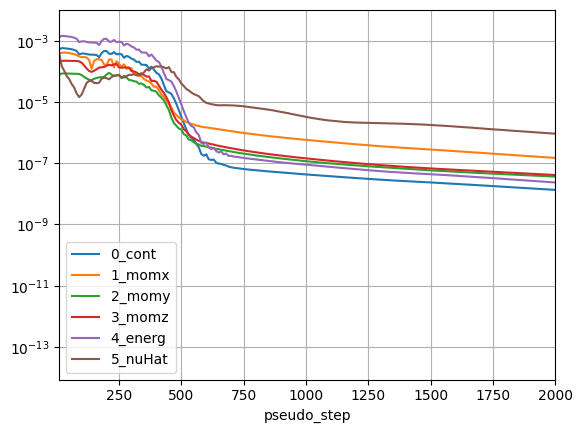
The cell below shows how to quickly view the convergence of a simulation, but other results are available such as:
forces
monitors
aeroacoustics results
user defined dynamics monitoring
and others
[12]:
nonlinear_residuals_data = results.nonlinear_residuals.as_dataframe()
nonlinear_residuals_data.plot(
    "pseudo_step",
    ["0_cont", "1_momx", "2_momy", "3_momz", "4_energ", "5_nuHat"],
    logy=True,
    xlim=[10, 2000],
    grid=True,
)
[10:35:34] INFO: Saved to C:\Users\user\AppData\Local\Temp\tmprp_0gk5h\b80acd78-93c3-47e2-b183-9654af7f590d.csv
[12]:
<Axes: xlabel='pseudo_step'>
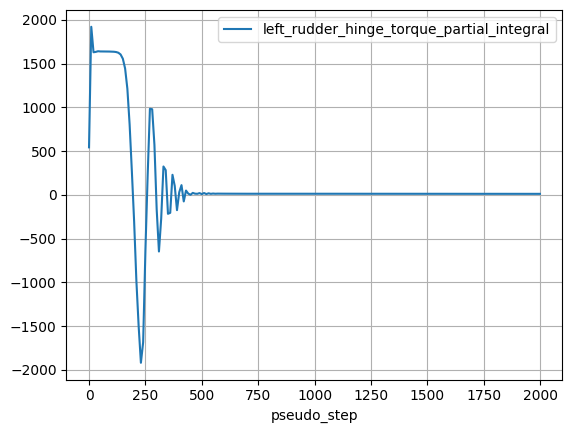
To access the hinge torque history that was set with the SurfaceIntegralOutput, the monitors result type should be accessed.
[13]:
left_rudder_hinge_torque_history = results.monitors[
    "left_rudder_hinge_torque"
].as_dataframe()
left_rudder_hinge_torque_history.plot(
    "pseudo_step", "left_rudder_hinge_torque_partial_integral", grid=True
)
[10:35:38] INFO: Saved to C:\Users\user\AppData\Local\Temp\tmprp_0gk5h\5874a8b1-0f4e-402b-99bd-327224fd4adb.csv
[13]:
<Axes: xlabel='pseudo_step'>
7. Report generation#
This section illustrates the process for generating summary reports of simulation results with Flow360’s reporting tool. Automated reports simplify compiling, visualizing, and sharing key simulation outputs, including tables, charts, and calculated quantities, without the need for manual post-processing. The example below builds and customizes a report that includes convergence history, force coefficients, and hinge torque summaries.
The object necessary to construct a ReportTemplate are imported from flow360.plugins.report namespace.
[14]:
from flow360.plugins.report import (
    ReportTemplate,
    Chart2D,
    Table,
    NonlinearResiduals,
    DataItem,
    Average,
)
As the first entries to the report summary tables are created containing force coefficients of the whole aircraft and monitored hinge torques. An object representing data is the DataItem that is defined using the data argument which is a “path” to a certain variable as would be accessed through the Case object. For example to access angle of attack:
through
Case:case.params.operating_condition.alpha,path for
DataItem:"params/operating_condition/alpha".
DataItem also allows to perform operations on the base data provided. In this case an Average operation is performed to get the variables averaged over the last 10% of pseudo steps.
In the cell below necessary DataItems are defined and Tables are constructed.
[15]:
left_aileron_hinge_torque_final = DataItem(
    data="results/monitors/left_aileron_hinge_torque/left_aileron_hinge_torque_partial_integral",
    operations=[Average(fraction=0.1)],
)
right_aileron_hinge_torque_final = DataItem(
    data="results/monitors/right_aileron_hinge_torque/right_aileron_hinge_torque_partial_integral",
    operations=[Average(fraction=0.1)],
)
left_rudder_hinge_torque_final = DataItem(
    data="results/monitors/left_rudder_hinge_torque/left_rudder_hinge_torque_partial_integral",
    operations=[Average(fraction=0.1)],
)
right_rudder_hinge_torque_final = DataItem(
    data="results/monitors/right_rudder_hinge_torque/right_rudder_hinge_torque_partial_integral",
    operations=[Average(fraction=0.1)],
)

CL = DataItem(data="results/total_forces/CL", operations=[Average(fraction=0.1)])
CD = DataItem(data="results/total_forces/CD", operations=[Average(fraction=0.1)])

forces_table = Table(data=[CL, CD], section_title="Forces")
aileron_torques_table = Table(
    data=[
        left_aileron_hinge_torque_final,
        right_aileron_hinge_torque_final,
    ],
    section_title="Aileron hinge torques",
)
rudder_torques_table = Table(
    data=[left_rudder_hinge_torque_final, right_rudder_hinge_torque_final],
    section_title="Rudder hinge torques",
)
Another useful object to be used is Chart2D that allows to visualize time histories or pseudo step progressions of variables through the simulations. A different set of DataItems has to be defined not to include the Average operation.
[16]:
left_aileron_hinge_torque = DataItem(
    data="results/monitors/left_aileron_hinge_torque/left_aileron_hinge_torque_partial_integral",
    title="left_aileron_hinge_torque_monitor",
)
right_aileron_hinge_torque = DataItem(
    data="results/monitors/right_aileron_hinge_torque/right_aileron_hinge_torque_partial_integral",
    title="right_aileron_hinge_torque_monitor",
)
left_rudder_hinge_torque = DataItem(
    data="results/monitors/left_rudder_hinge_torque/left_rudder_hinge_torque_partial_integral",
    title="left_rudder_hinge_torque_monitor",
)
right_rudder_hinge_torque = DataItem(
    data="results/monitors/right_rudder_hinge_torque/right_rudder_hinge_torque_partial_integral",
    title="right_rudder_hinge_torque_monitor",
)

aileron_hinge_torques_convergence = Chart2D(
    x="results/monitors/left_aileron_hinge_torque/pseudo_step",
    y=[
        left_aileron_hinge_torque,
        right_aileron_hinge_torque,
    ],
    section_title="Aileron hinge torques convergence",
    show_grid=True,
    ylim=[-100, 100],
)

rudder_hinge_torques_convergence = Chart2D(
    x="results/monitors/left_rudder_hinge_torque/pseudo_step",
    y=[left_rudder_hinge_torque, right_rudder_hinge_torque],
    section_title="Rudder hinge torques convergence",
    show_grid=True,
    ylim=[-30, 30],
)
Finally all of the objects are compiled into one ReportTemplate and submitted to the cloud. An additional NonlinearResiduals object is added that automatically adds the plots of convergence to the report.
When submitting the report using create_in_cloud the list of cases has to be given. In this example only one is specified but when performing multiple simulations more cases can be specified and compared. The tables would then be populated with the data from all of the specified cases.
For an example of utilizing the report API for more Case instances see Alpha sweep tutorial or Wall roughness tutorial
[17]:
template = ReportTemplate(
    title="Hinge forces report",
    items=[
        forces_table,
        aileron_torques_table,
        rudder_torques_table,
        NonlinearResiduals(),
        aileron_hinge_torques_convergence,
        rudder_hinge_torques_convergence,
    ],
)

report = template.create_in_cloud(name="hinge_forces", cases=[case])

report.wait()
report.download("report.pdf")
[10:36:58] INFO: Saved to report.pdf
[17]:
'report.pdf'