3.4. Meshing#

Flow360 offers different approaches to meshing, which are developed to suit different needs and workflows. The meshing algorithms can be divided into surface and volume meshers, each having its own advantages. They are available in four combinations forming full meshing workflows.

Available workflows#

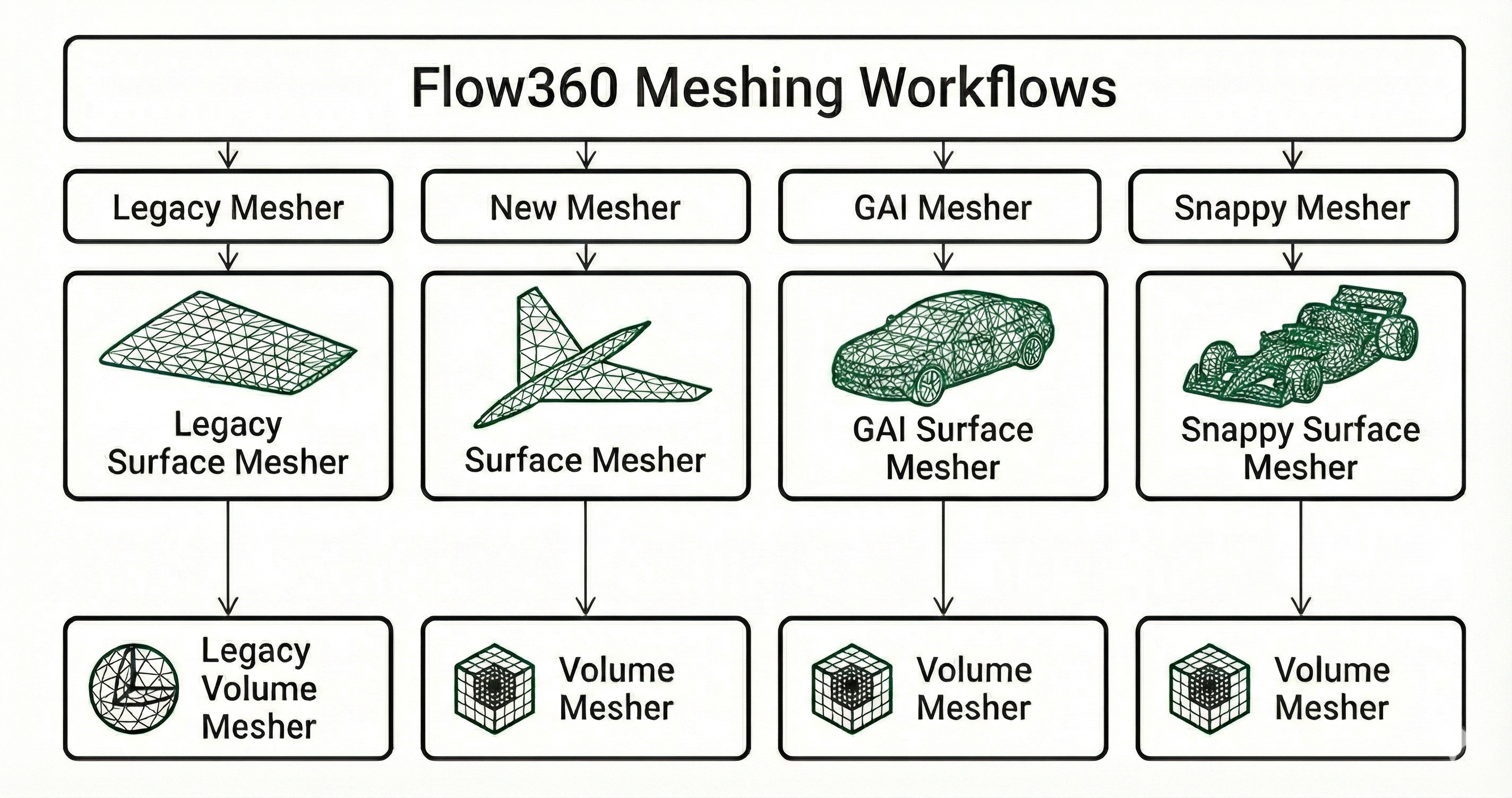
Flow360 supports multiple meshing workflows. This section provides a high-level map of the available options and links to the workflows. There are currently four mesher workflows available in Flow360 summarised in Fig. 3.4.1 below:

../../_images/mesher_workflows.png

Fig. 3.4.1 Mesher workflows#

Go to Example Library to see more available examples for each mesher workflow. Here is a high-level overview of the mesher workflows advantages and disadvantages:

Table 3.4.1 Mesher workflow overview#

Workflow

Characteristics

Legacy mesher

  • First mesher workflow in Flow360

  • Supports automated Quasi-3D meshing

  • No longer maintained

  • Needs watertight geometry

New mesher

  • Current standard workflow

  • Ongoing improvements

  • Recommended starting point for new users/projects

  • Needs watertight geometry

Geometry AI mesher

  • More robust setup with automated/intelligent meshing decisions

  • More robust CAD import and geometry processing

  • Can reduce manual tuning for common cases

  • Might not sustain sharp edges as for release 25.8, this is actively improved

Snappy mesher

  • Leverages a widely used OpenFOAM meshing utility

  • Flexible for complex geometries; many established best practices exist

  • Handles dirty CAD models with intersections and gaps

Surface Meshers#

Surface Mesher#

The main surface mesher allows to generate high quality efficient meshes for watertight geometries. It is the default surface mesher and the recommended starting point for new users/projects.

Main characteristics:

  • requires a watertight geometry at the input,

  • generates an anisotropic mesh, allowing for better refinement near leading or trailing edges,

  • retains feature edges and offers edge-based refinements.

Examples#

Examples of meshing using Surface Mesher can be found in the Python API Example Library:

Recommended for:

  • watertight aerospace geometries,

  • simple geometries of aerodynamic devices.

../../_images/new_sm_example.png

Fig. 3.4.2 Example of a mesh generated using the Surface Mesher.#

Geometry AI Surface Mesher#

Geometry AI Surface mesher is a combination of a geometry processing utility with a surface mesher.

Main characteristics:

  • handles non watertight geometries,

  • handles intersecting solid bodies well,

  • allows for basic geometry transformations of solids (to use this feature, define solids in separate CAD files),

  • patches holes in the geometry,

  • allows for the analytical specification of a Wind Tunnel geometry as a farfield as well as creating a half-model for more efficient straight line simulations,

  • does not conform to feature edges, to improve their representation, the geometry accuracy must be increased.

Meshing Process#

The surface mesher performs two main steps:

  1. Geometry Processing

    Through the use of Geometry AI, the geometry is processed and prepared for surface meshing. This includes:

    • applying basic geometric transformations to solids,

    • resolving intersections,

    • patching holes in the geometry,

    • applying basic geometry transformations to solids defined in separate files,

    • constructing the farfield geometry,

    • splitting the geometry to create a half-model.

  2. Surface Meshing

    The geometry is meshed using the surface mesher which enables the user to specify all kinds of refinements, also per face of the input geometry.

Examples#

Examples of meshing using Geometry AI can be found in the Python API Example Library. Specifically look at:

Recommended for:

  • non-watertight geometries,

  • faulty low quality geometries,

  • intersecting solid bodies,

  • geometries of automotive production vehicles.

../../_images/gai_sm_example.png

Fig. 3.4.3 Example of a mesh generated using the Geometry AI Surface Mesher.#

Snappy Surface Mesher#

snappyHexMesh is an advanced mesh generation utility included in the OpenFOAM suite, designed for creating meshes for computational fluid dynamics (CFD) simulations. It is widely used due to its capability to handle complex, non-watertight geometries and support automated refinement.

The primary function of snappyHexMesh is to convert simple background meshes into complex, geometry-conforming computational meshes suitable for numerical simulations. It uses a three-step approach that enables the user to generate meshes tailored to their specific geometries and simulation requirements. snappyHexMesh is particularly useful for:

  • Meshing around intricate CAD geometries represented in STL format

  • Extracting geometry features

  • Refining mesh near feature edges, on surfaces and in defined volumetric regions

Mesh generation process#

  1. Base Mesh Generation

    Before snappyHexMesh can operate, a base mesh must be created using blockMesh (also called background mesh). This mesh serves as the computational domain into which snappyHexMesh will carve the geometry. The base mesh is typically a simple hexahedral block structure.

    ../../_images/background.png

    Fig. 3.4.4 The background mesh generated by blockMesh.#

  2. Castellation

    The background mesh is refined in several steps. The strategy is to refine the mesh close to the features and the geometry surface to ease the snapping phase and at the same time allow as little mesh distortion as possible. Mesh sizes are defined as relative to the starting background mesh. For example, if the background mesh size is 0.2 m, the mesh sizes at one and two levels of refinement will be 0.1 m and 0.05 m respectively.

    ../../_images/refinement.png

    Fig. 3.4.5 The refined background mesh based on the mesher settings.#

  3. Surface Snapping

    The snapping phase attempts to adapt the castellated mesh to conform to the input geometry. Snapping involves projecting and morphing the mesh to the surfaces and features in an iterative process. If the adaptations invalidate the mesh quality criteria, the step is undone and replayed using modified parameters. The sequence ensures that the resulting mesh achieves a minimum quality, at the expense of full geometry conformation. The algorithm first smooths the mesh on the patches and in the volume. Then, in the morphing stage, the algorithm displaces the vertices towards the surface.

    ../../_images/snapping.png

    Fig. 3.4.6 The mesh snapped to the geometry.#

  4. Surface Processing

    Finally, the generated surface is processed to ensure it is watertight and has the desired quality. It includes:

    • smoothing (using the lambda-mu algorithm)

    • improvement of feature edge representation

    • ensuring mesh watertightness

Geometry Preparation#

If the snappyHexMesh is used for surface meshing the geometry provided must be in the ASCII STL format. The input should contain solid names and basic geometry information, multiple solids are allowed.

The geometry is grouped in two levels:

  • Body: a part of the geometry that will be input into snappyHexMesh as a searchableSurfaceWithGaps.

  • Region: a part of a solid that will be input as its parent’s region.

How the geometry is grouped depends on the names given to each solid instance in an stl file. The basic naming convention is “body::region”.

  • A Body will be merge of solid instances with their names beginning the same way. (meaning having the same name before the “::” split sign). For example “chassis::grill” and “chassis::mirror” will be considered a single body called “chassis”, but “chassis_other::pillar” will be a part of an another body. Bodies are referenced in flow360 using a fl.SnappyBody(body_name=”name”) class.

  • A Region is a part of a Body that represents a singular solid instance in a STL file. They are referenced by name as a Surface entity in flow360. For example to reference a “bonnet” Region of the “chassis” Body the user has to specify ‘geo[“chassis::bonnet”]’ where geo is a geometry object that can be extracted from a Case.

Important notes:

  • The patch names have to be unique. There cannot be two solid instances named the same in the STL file.

  • Unnamed solid instances are not supported.

  • If the geometry contains internal patches that will be completely deleted during the meshing process, running the case directly on a volume mesh generated will fail. As a workaround the user can download the volume mesh and reupload it to a new project or delete all parts of the input geometry that will be later deleted by the mesher.

Tip

When specifying a UniformRefinement, the snappyHexMesh will sometimes erroneously refine the underlying STL facets even they are not completely enclosed by the refinement region.

../../_images/overrefinement_base.png

Fig. 3.4.7 The example base STL geometry.#

../../_images/overrefinement.png

Fig. 3.4.8 The mesh generated from snappyHexMesh with a UniformRefinement specified.#

Important

Snappy Surface Mesher works now only with Python API.

Examples#

Examples of meshing with snappy can be found in the Python API Example Library. Specifically look at:

Recommended for:

  • motorsport geometries,

  • geometries with sharp edges,

  • faulty low quality geometries.

../../_images/snappy_sm_example.png

Fig. 3.4.9 Example of a mesh generated using the Snappy Surface Mesher.#

Legacy Surface Mesher#

The legacy surface mesher is the initial mesher workflow in Flow360. It is no longer maintained and is deprecated. It is recommended to use the new surface mesher instead.

Main characteristics:

  • requires a watertight geometry at the input,

  • generates a spherical or half-spherical automated farfields,

  • allows for the generation of quasi-3d meshes.

Examples#

Examples of mesh generation can be found in the Python API Example Library:

And in the WebUI Example Library.:

../../_images/legacy_sm_example.png

Fig. 3.4.10 Example of a mesh generated using the Legacy Surface Mesher.#

Volume Meshers#

Volume Mesher#

Overview#

The main volume mesher used in Flow360. It grows layers from the surface mesh and grows an octree on the farfield region connecting them through a layer of tertahedrons.

Available features:

  • Refinements:

    • uniform volumetric refinements specified using cylinders or boxes,

    • axisymmetric volumetric refinements specified using cylinders.

  • Boundary layers:

    • boundary layer growth rate and first thickness specification per face,

    • automatic calculation of the number of boundary layers,

    • projection of the boundary layer on planar and axisymmetric surfaces,

    • possibility of disabling boundary layer growth on a face.

  • Zones:

    • generation of axisymmetric zones with interfaces,

    • generation of custom volumetric zones based on the enclosing surfaces,

    • automatic generation of a farfield zone,

    • generation of structured mesh regions for porous media.

Examples#

Examples of mesh generation can be found in the Example Library. Specifically look at:

../../_images/new_vm_example.png

Fig. 3.4.11 Clip of an example mesh generated using the Volume Mesher.#

Legacy Volume Mesher#

The legacy volume mesher is the original volume meshing algorithm in Flow360 and is currently the default volume mesher. While still fully functional, it is being phased out in favor of the new volume mesher.

Main characteristics:

  • uses an unstructured tetrahedral mesh in the farfield region,

  • supports spherical and half-spherical farfield configurations,

  • allows for the generation of quasi-3D meshes for 2D simulations.

Available features:

  • Boundary layers:

    • first layer thickness specification,

    • growth rate control,

    • automatic layer count calculation based on target wall spacing.

  • Refinements:

    • uniform volumetric refinements specified using cylinders or boxes,

    • axisymmetric volumetric refinements specified using cylinders.

  • Zones:

    • rotating volume zones for simulating rotating machinery,

    • automatic farfield zone generation.

  • Farfield:

    • spherical farfield generation with configurable radius,

    • half-sphere farfield for symmetric configurations.

  • Quasi-3D meshing:

    • automatic handling of quasi-3D geometries,

    • boundary condition setup for quasi-3D simulations.

Examples#

Examples of mesh generation can be found in the Python API Example Library:

And in the WebUI Example Library.:

../../_images/legacy_vm_example.png

Fig. 3.4.12 Clip of an example mesh generated using the Legacy Volume Mesher.#