
Top Bar#
The Flow360 GUI top bar provides essential navigation and project management functionality, enabling efficient workflow control and access to key features.
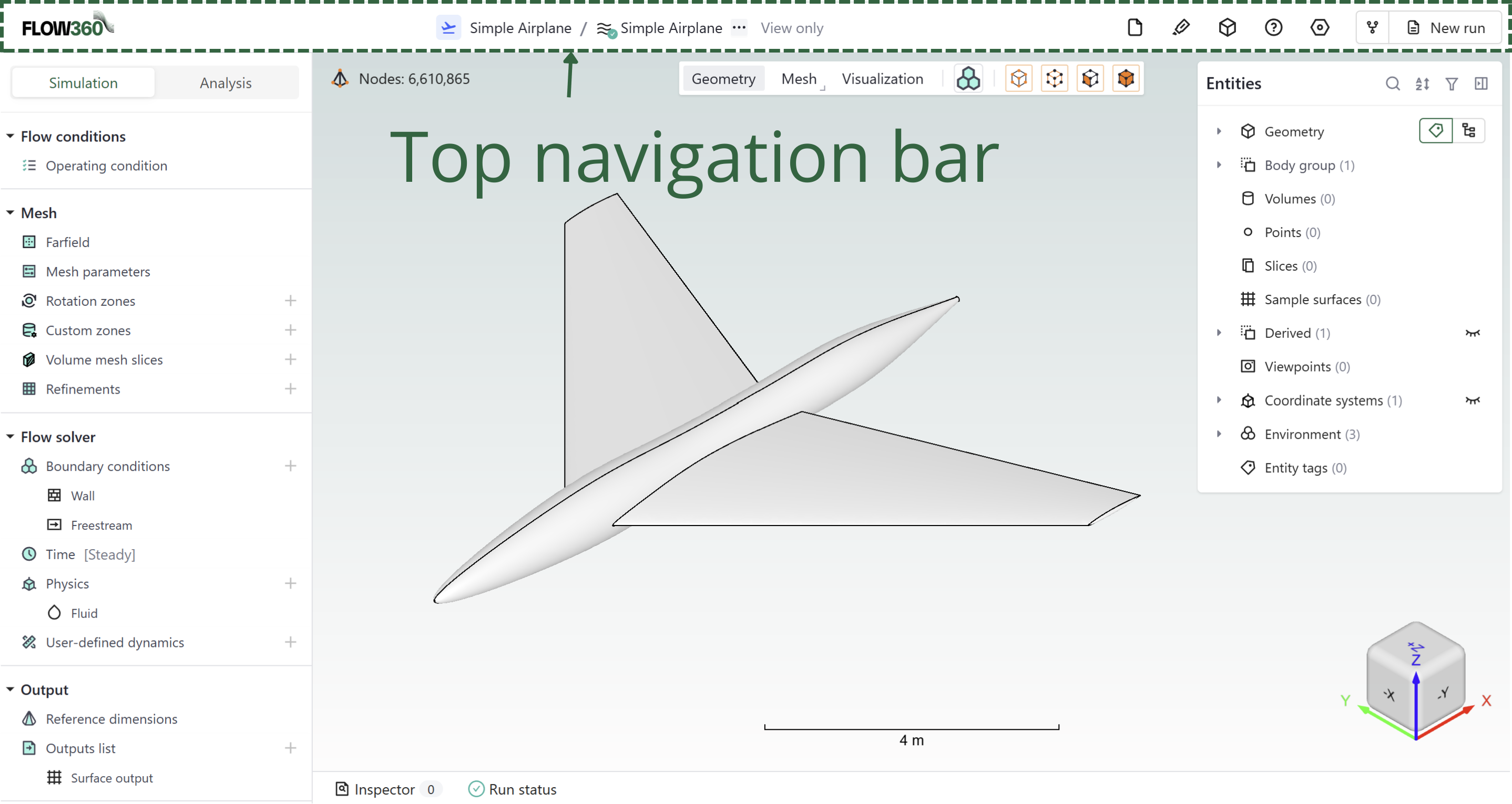
Available Components (from left to right)#
Component |
Icon |
Description |
|---|---|---|
Flow360 logo |
|
Return to Flow360 Dashboard |
Project tree |
|
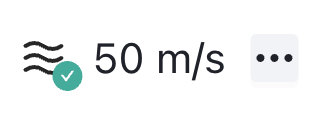
Hierarchical view of project components. See Project tree |
More |
|
Export/import settings via three-dot menu |
View only |
|
Indicates view-only mode for the project |
Assets |
|
Access project assets and resources |
Resource |
|
Import geometry resources (Geometry AI only) and sample surfaces |
Probe |
|
Show location of entered coordinates or show coordinates of a clicked location |
Help |
|
Access documentation and support |
Settings |
|
Access to project and variable settings |
Fork/New run |
|
Create project variants |



See also
For the workflow and interface overview, see the User Guide: Workflows & Interfaces.
Detailed Descriptions#
Flow360 logo#
Quick access to return to the Flow360 Dashboard, maintaining efficient workflow navigation.
Project tree#
Hierarchical organization of project components, providing structured access to simulation elements.
Expandable/collapsible structure
Visual status indicators
Direct component access
See Project tree for more details
More#
Additional project management options accessible via a three-dot menu.
Import/Export simulation settings
Import/Export viewpoints
View only#
Notification that the project is currently being viewed in view-only mode.
Simulation parameters cannot be changed in this mode
To exit, click on New run or select a component from the project tree
Assets#
 Central repository for project-related resources and files.
Information about each asset
Downloadable files list for each asset
Resource#
 Import geometry resources and sample surfaces.
Geometry resource: Import additional geometry files (Geometry AI only)
Sample surface: Import sample surface data
Probe#
 Show location of entered coordinates or show coordinates of a clicked location.
Enter coordinates to highlight a location in the viewer
Click on geometry to display coordinates of that point
Help#
 Access to documentation, support resources, and guidance materials.
Project settings#
 Configuration interface for project-specific parameters. Includes run settings and project details.
Fork/New run#
Create an extension of a case based on current configuration.
See Forking section in the Project tree documentation for more information.