
Virtual GPU Scheduler#
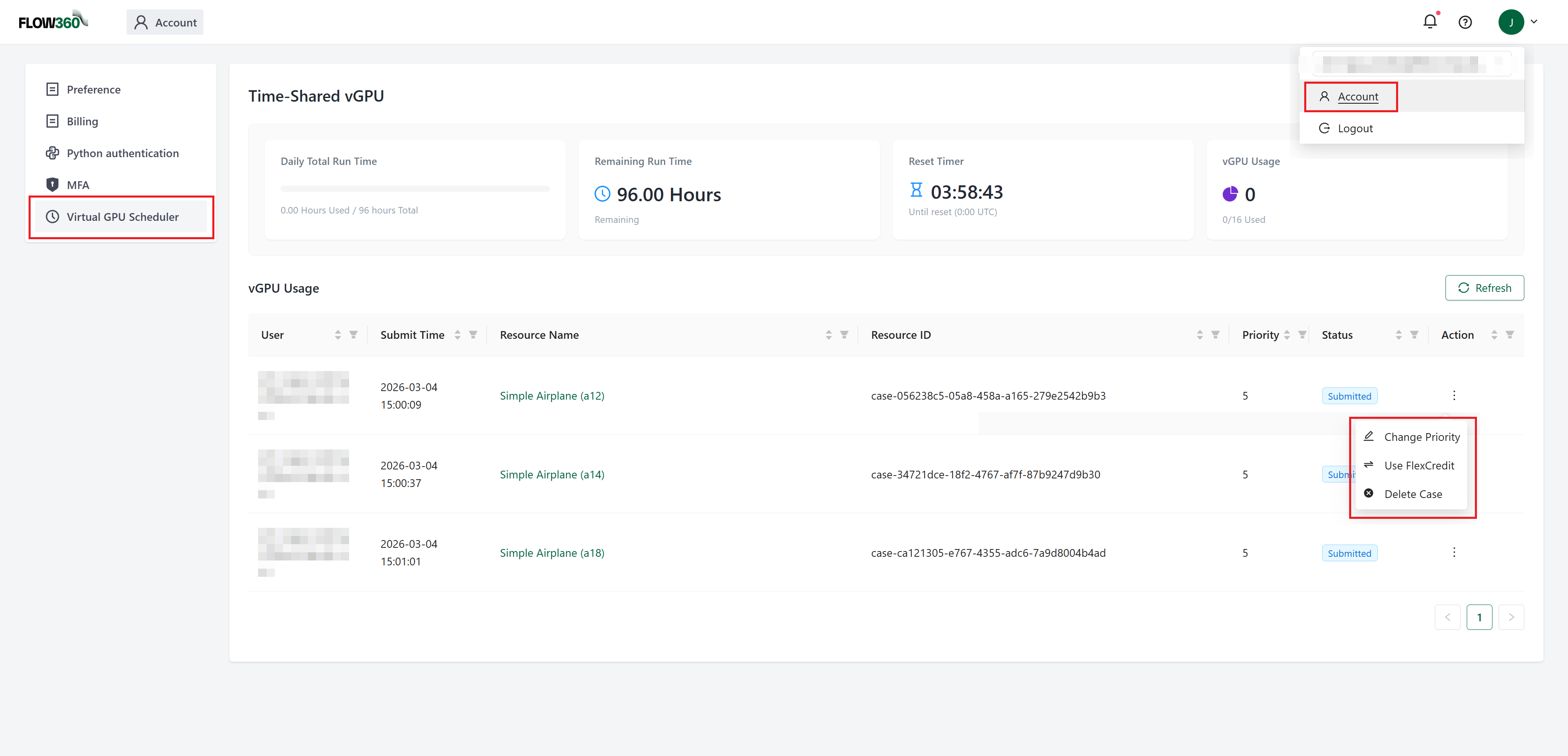
The Virtual GPU Scheduler tab lets you monitor your daily vGPU allocation, track the remaining run time, and manage all jobs currently queued or running under your vGPU license.
When you click Run in the workbench, the run dialog lets you choose between paying with FlexCredits or using your reserved Virtual GPU allocation. See the General Workflow – Run step for an overview of the run dialog options.
Note
Virtual GPU availability: The Virtual GPU option is only available to accounts that include a vGPU license (time-shared GPU subscription). If your account does not have an active vGPU allocation, the Virtual GPU option will not appear in the run dialog and this tab will show no active jobs.
Overview Metrics#
The top of the Virtual GPU Scheduler page displays four summary cards:
Metric |
Description |
|---|---|
Daily Total Run Time |
Your total daily GPU-hour allocation and the number of hours already consumed (e.g., 0.00 Hours Used / 96 hours Total) |
Remaining Run Time |
GPU-hours still available today |
Reset Timer |
Countdown to the next daily quota reset (resets at 0:00 UTC) |
vGPU Usage |
Number of vGPU slots currently occupied out of the maximum concurrent allocation (e.g., 0/16 Used) |
vGPU Usage Table#
The vGPU Usage table lists all jobs that have been submitted to the vGPU queue. It can be refreshed at any time using the Refresh button in the top-right corner of the table.
Column |
Description |
|---|---|
User |
Avatar and name of the user who submitted the job |
Submit Time |
Date and time the job was added to the queue |
Resource Name |
Clickable link to the simulation case |
Resource ID |
Unique case identifier |
Priority |
Scheduling priority (1–10; higher value = higher priority) |
Status |
Current job state: Submitted, Running, Completed, or Failed |
Action |
Context menu (⋮) for per-job operations |
Job Actions#
Clicking the ⋮ (action) button on any job row opens a context menu with the following options:
Change Priority — Adjust the scheduling priority (1–10) of the queued job. Higher priority jobs are scheduled before lower priority ones when vGPU slots become available.
Use FlexCredit — Move the job out of the vGPU queue and instead consume it from your FlexCredit balance, switching it to the regular pay-as-you-go queue immediately.
Delete Case — Remove the case and cancel its execution. This action is irreversible.
Queue Capacity Warning#
If all vGPU slots are occupied when you submit a job with the Virtual GPU option, the job enters the queue and waits until a slot becomes free. A warning is displayed indicating that the queue is at capacity. You can monitor queue position in the Virtual GPU Scheduler tab or switch the job to FlexCredits via the Use FlexCredit action in the job context menu.
❓ Frequently Asked Questions
When is the Virtual GPU option available to me?
The Virtual GPU option appears in the run dialog only when your account holds an active vGPU license (time-shared GPU subscription). Contact your organisation administrator or Flexcompute sales to enquire about adding a vGPU allocation to your account.
What is a Time-Shared Virtual GPU (vGPU)?
A vGPU is a fraction of a physical GPU shared across multiple users on a time-multiplexed schedule. It provides dedicated GPU-hour allocations at a lower cost than an exclusive GPU queue, making it suitable for steady workloads.
What happens when my daily GPU-hour quota runs out?
New submissions with the Virtual GPU option will be rejected until the quota resets at 0:00 UTC. You can still run simulations using the FlexCredits option.
Can I change from Virtual GPU to FlexCredits after submitting?
Yes. Open the Virtual GPU Scheduler tab, find the job in the vGPU Usage table, click the ⋮ action menu, and select Use FlexCredit. The job will be moved to the standard FlexCredits queue immediately.
Who can see the vGPU Usage table?
The table shows all jobs from all users in your organisation that are queued or running on the shared vGPU scheduler, so team members can see each other’s queue status.
What does the priority value affect?
When multiple jobs are waiting and a vGPU slot opens up, the job with the highest priority (closest to 10) is scheduled next. Jobs with equal priority are ordered by submit time (first in, first out).
See also
Running simulations on the Virtual GPU queue is also supported via the Flow360 Python client. See Run a Case on Virtual GPU for a ready-to-use code snippet using the billing_method and priority parameters of project.run_case().