
Keyboard Shortcuts#
Keyboard shortcuts in Flow360 WebUI provide quick access to frequently used actions, improving workflow efficiency and reducing reliance on mouse navigation.
Note: On macOS,
Ctrlis replaced withCommand(Cmd) for all shortcuts.
Selection#
Shortcuts for selecting items in the Flow360 Workbench.
Action |
Windows / Linux |
macOS |
Description |
|---|---|---|---|
Single selection |
|
|
Select a single item |
Multiple selection |
|
|
Add or remove items from selection |
Box selection |
|
|
Select multiple items by dragging a selection box |
Continue to add/remove selections |
|
|
Modify existing selection by dragging a box |
Clear selection |
|
|
Deselect all currently selected items |
View#
Shortcuts for navigating and controlling the 3D viewer.
Action |
Windows / Linux |
macOS |
Description |
|---|---|---|---|
Move (Pan) |
|
|
Pan the view by holding right mouse button and dragging |
Rotate |
|
|
Rotate the view by holding left mouse button and dragging |
Zoom in |
|
|
Zoom in by scrolling mouse wheel forward |
Zoom out |
|
|
Zoom out by scrolling mouse wheel backward |
Fit view |
|
|
Fit entire model to viewport |
Fit selected |
|
|
Fit selected items to viewport |
Reset view |
|
|
Reset camera to default view |
Project Tree#
Shortcuts for interacting with the project tree hierarchy.
Context Menu Shortcuts#
Shortcuts for performing actions from the project tree context menu. Only applies to the first four actions in the menu illustrated below.
Action |
Windows / Linux |
macOS |
Description |
|---|---|---|---|
Open in new tab |
|
|
Open actions in a new tab |
Open in current tab |
|
|
Standard left click opens items in the current tab |
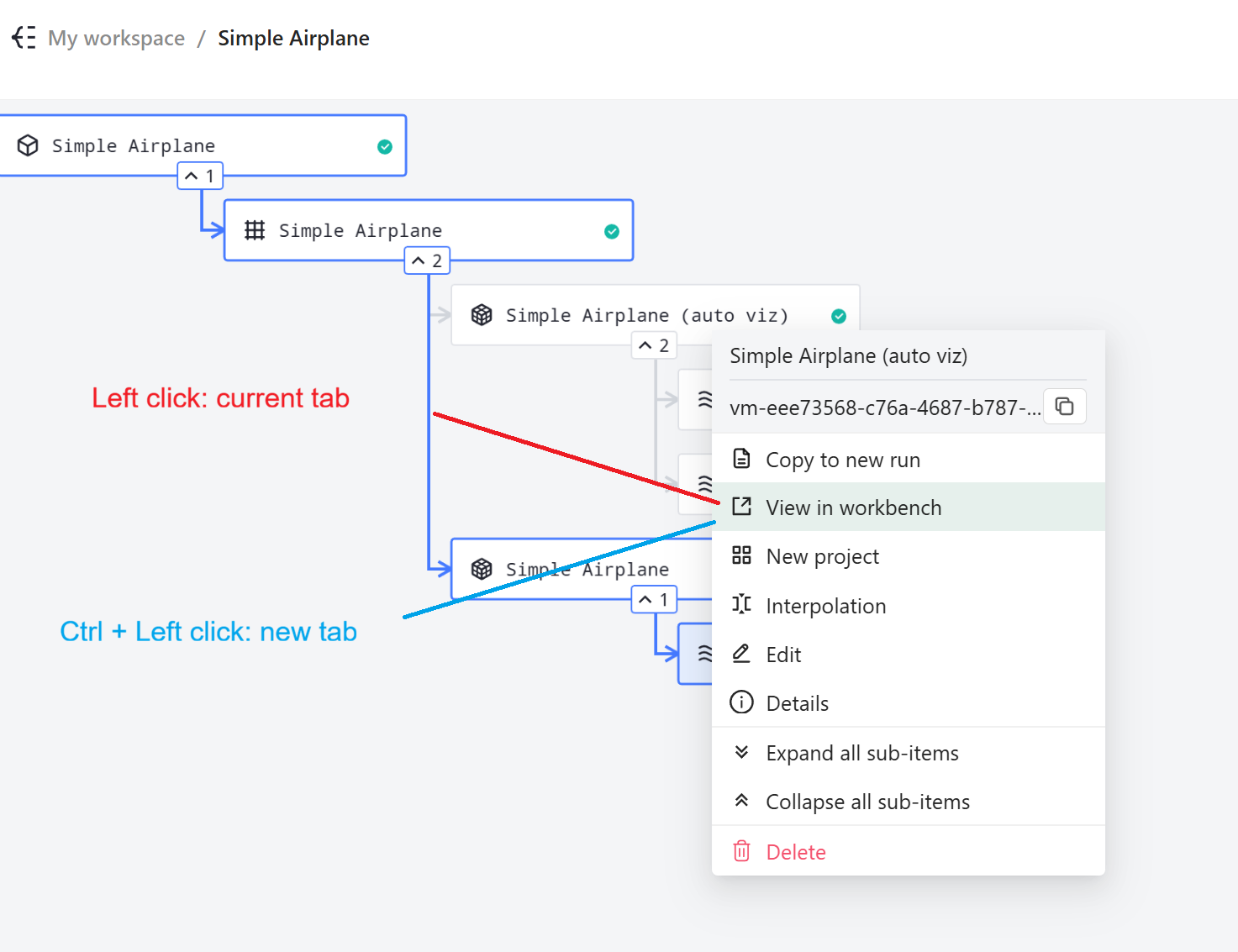 Project tree context menu showing the difference between standard left click (opens in current tab) and Ctrl/Cmd + Left click (opens in new tab).
Tree Selection Shortcuts#
Shortcuts for selecting items in the project tree.
Action |
Windows / Linux |
macOS |
Description |
|---|---|---|---|
Box selection |
|
|
Select multiple tree items by dragging a selection box |
Continue to add/remove selections |
|
|
Modify existing selection by dragging a box |