

Geometry
A physical structure in Flexcompute RF (also Flex RF) is represented by a geometry and a medium. This page explains how to create and manipulate geometry. A variety of built-in primitives are supported, as well as boolean operations and spatial transformations. Collections of geometry objects can also be combined in geometry groups. Flex RF also has built-in interoperability with certain external file formats.
Primitives
Section titled “Primitives”Create 1D lines, 2D planes, and 3D boxes with Box.
# Create a box by specifying center position and sizemy_box1 = Box(center=(-2,0,0), size=(1,2,1))
# Create a box by specifying min/max boundsmy_box2 = Box.from_bounds(rmin=(-1,-0.5,-1), rmax=(1, 0.5,1))
# Create a 2D plane by setting size to zero in the normal directionmy_plane = Box(center=(0,0,-1), size=(5,5,0))
# Create a 1D line by setting size to zero in two dimensionsmy_line = Box(center=(0,3,0), size=(5,0,0))
# Get the 2D planar faces of a box quickly using the surfaces() methodmy_box_surfaces = Box.surfaces(center=(2,0,0), size=(1,1,1))my_box_surfaces = my_box_surfaces[4:]  # keep only the planes normal to z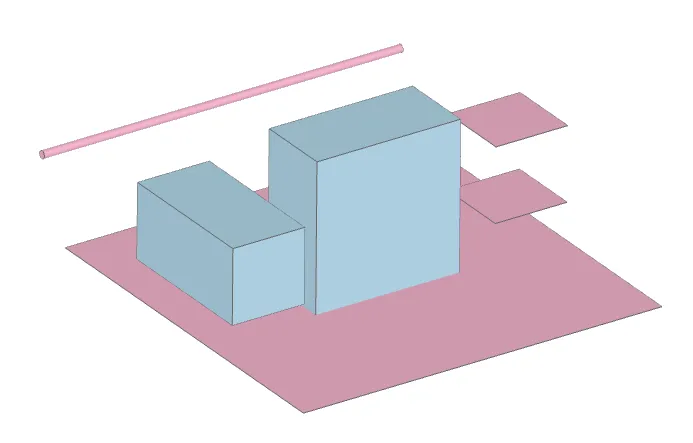
Spheres are created with the Sphere object. The Cylinder object can be used to create cylinders and conical geometry in 3D, as well as circles in 2D.
# Create a spheremy_sphere = Sphere(center=(-2,0,0), radius=1)
# Create a cylindermy_cylinder = Cylinder(center=(0,0,0), axis=1, radius=0.5, length=2)
# Create a conical geometry by specifying sidewall_angle (radians)my_conical_shape = Cylinder(center=(2,0,0), axis=2, radius=0.5, length=2, sidewall_angle=np.pi/15)
# Create a circlemy_circle = Cylinder(center=(0,0,-1), axis=2, radius=5, length=0)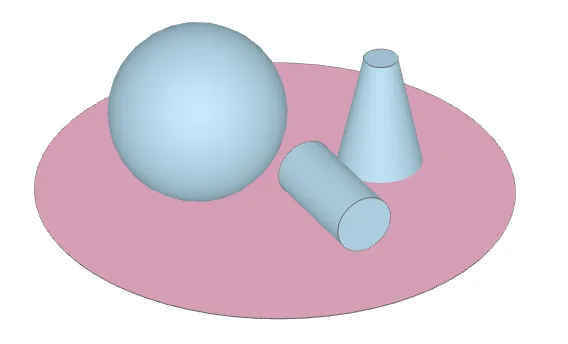
Use the PolySlab object to create custom polygons in 2D and extruded polygons in 3D.
# Specify the in-plane polygon verticesmy_vertices = np.array([(-3,0), (-1,0), (-2,1)])
# Create polyslab from verticesmy_polyslab = PolySlab(vertices=my_vertices, axis=2, slab_bounds=(0,2))
# Use the sidewall_angle attribute to create sloped polyslabsmy_vertices2 = np.array([(1, 0), (3, 0), (2.5, 1), (1.5, 1)])my_polyslab2 = PolySlab(vertices=my_vertices2, axis=1, slab_bounds=(0,2), sidewall_angle=np.pi/20)
# Use the dilation attribute to expand/shrink each edge along its normalmy_polyslab_dilated = my_polyslab.updated_copy(dilation=0.1)   # copy and dilate by 0.1 ummy_polyslab3 = (my_polyslab_dilated - my_polyslab).translated(0, 3, 0)  # cut original shape out of dilated shape, then translate
# Use the bulge attribute to define curved edges between verticesmy_polyslab4 = my_polyslab.updated_copy(bulges=[0, 0, 1]).translated(4, 3, 0)  # copy, apply bulge and translate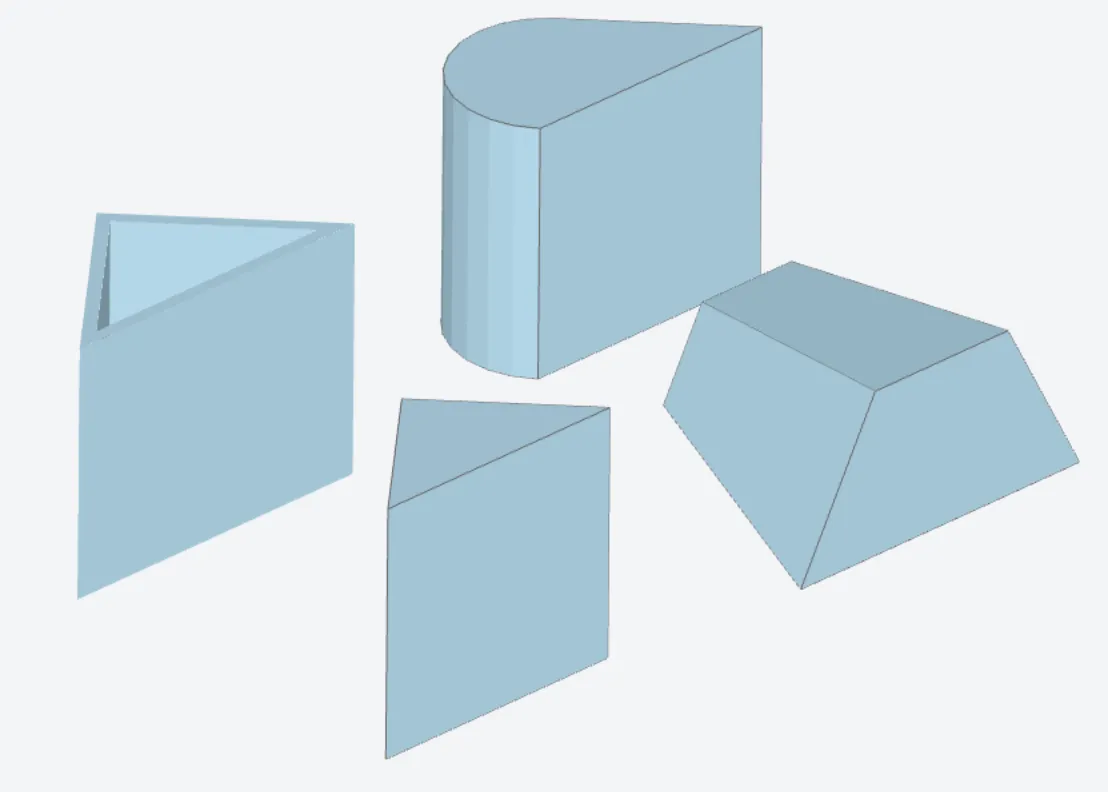
Boolean Operations
Section titled “Boolean Operations”The ClipOperation object supports union, intersection, difference, and symmetric difference operations between two geometry objects.
# Differencemy_boolean1 = ClipOperation(    operation='difference',    geometry_a=Box(center=(-2,0,0), size=(1,1,2)),    geometry_b=Cylinder(center=(-2,0,0), axis=2, radius=0.25, length=2))
# Intersectionmy_boolean2 = ClipOperation(    operation='intersection',    geometry_a=Sphere(center=(2,0,-6), radius=6),    geometry_b=Cylinder(center=(2,0,0), axis=2, radius=2, length=1))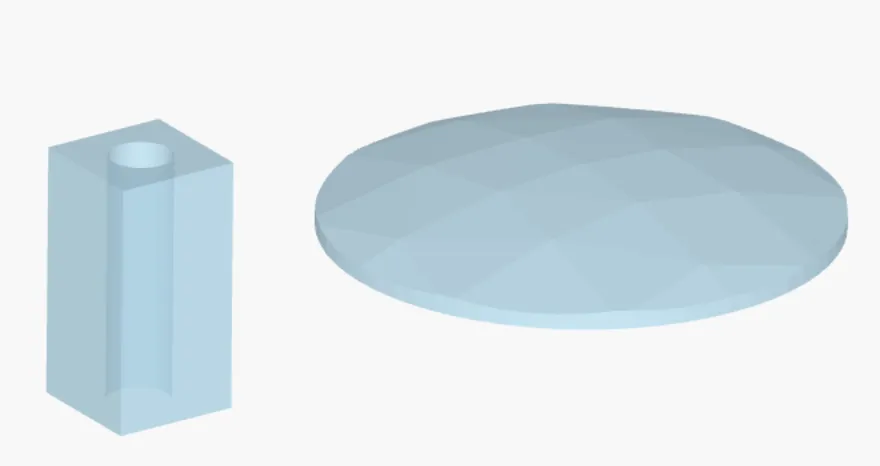
You can use the following binary operators as convenient shorthand for the respective operation.
| Operation | Shorthand |
|---|---|
| Union | a + b |
| Difference | a - b |
| Intersection | a * b |
| Symmetric difference | a ^ b |
# Use the binary operator as shorthandmy_box = Box(center=(-2,0,0), size=(1,1,2))my_cylinder = Cylinder(center=(-2,0,0), axis=2, radius=0.25, length=2)my_boolean1 = my_box - my_cylinderSpatial Transformations and Arrays
Section titled “Spatial Transformations and Arrays”You can use translated(), scaled(), rotated(), and reflected() with any geometry object to perform the respective transformation. A copy is returned and the original object is not modified. Multiple operations can be chained.
my_box = Box(center=(0,0,0), size=(1,1,2))
# Rotate by 30 degrees CW around Y axismy_box_rotated = my_box.rotated(angle=np.pi/6, axis=1)
# Translate by -2 um in X, followed by reflection along X direction about originmy_box_translated = my_box.translated(-2,0,0).reflected((1, 0, 0))
# Scale by 2x in (X, Y) directions, by 0.2x in Zmy_box_scaled = my_box.scaled(2,2,0.2)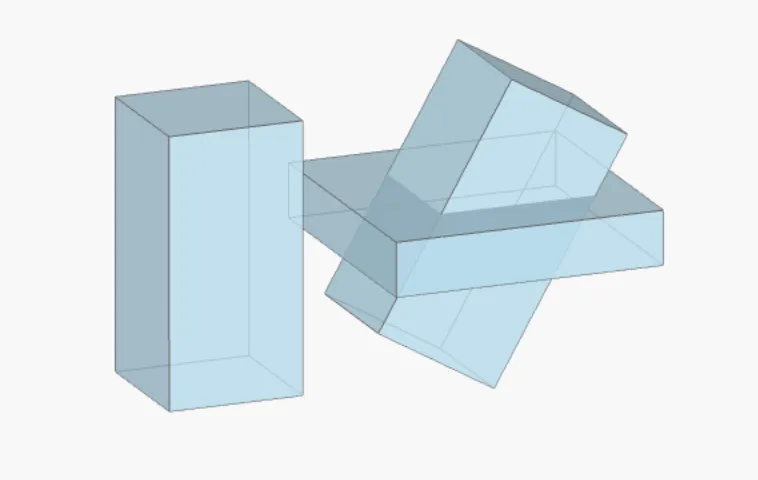
For fully general transformations, you can use the Transformed class to specify an arbitrary 4x4 transformation matrix.
# Use static methods in Transformed to generate 4D transformation matricesmat_translation = Transformed.translation(-2, 0, 0)mat_scaling = Transformed.scaling(1, 0.2, 1)mat_rotation = Transformed.rotation(angle=np.pi/4, axis=1)
# Multiply matrices together to make arbitrary transformationmat_transformation = mat_translation @ mat_rotation @ mat_scalingmy_box_transformed = Transformed(geometry=my_box, transform=mat_transformation)
To create a repeated array of geometries, use the GeometryArray object. You can also use the array() method with any geometry.
my_box = Box(size=(2,0.75,1))
# Create a linear 4 x 3 array with (3, 2) um offset in (X, Y)offsets = [ (i*3-4, j*2-1.5, 0) for i in range(4) for j in range(3) ]my_box_array = GeometryArray(geometry=my_box, offsets=offsets)
# Create a 24-element circular array with offset radius 10 um.angles = np.linspace(0, 2*np.pi, 24)offsets2 = [ ( 10*np.cos(theta), 10*np.sin(theta), 0 ) for theta in angles ]rotations = [ Transformed.rotation(angle=theta, axis=2) for theta in angles ]my_circular_array = my_box.array(offsets=offsets2, transforms=rotations)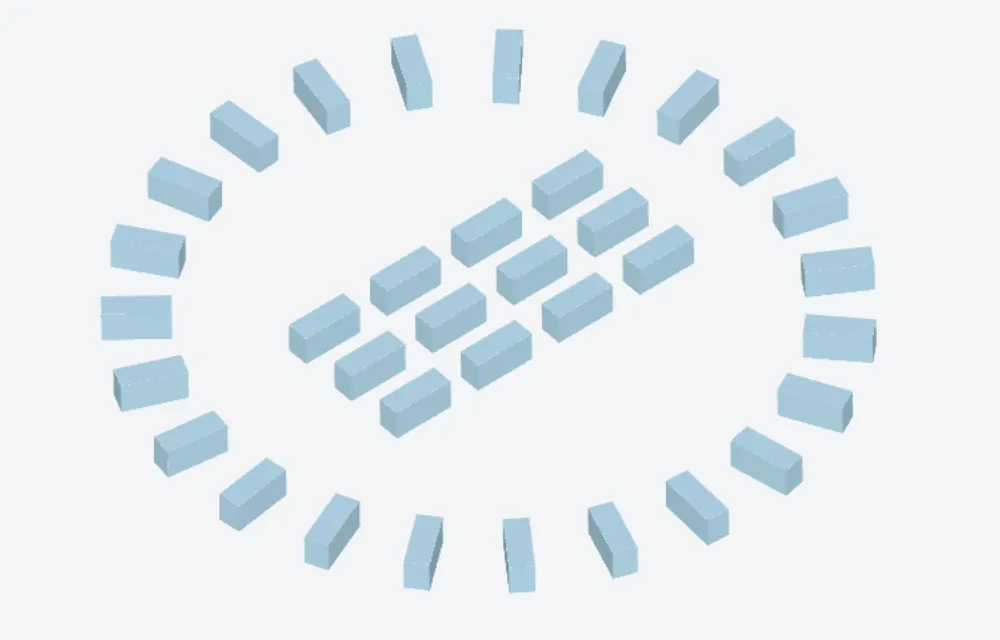
Geometry Groups
Section titled “Geometry Groups”Instead of keeping track of multiple geometries in a list, use the GeometryGroup object to group them together.
# Group previously created geometries togethermy_geom_group = GeometryGroup(geometries=[my_box, my_cylinder, my_boolean1])A GeometryGroup is also considered a regular geometry object, and thus can be used in transformations, boolean operations, arrays, and even other geometry groups.
We recommend grouping geometries together when they share the same physical material. For instance, one can group all the copper structures in a single layer of a PCB. This will result in faster solver pre-processing, especially in scenes with large amounts of geometry.
External file formats
Section titled “External file formats”The GDSII file format is commonly used in photonic integrated circuit design to specify 2D geometric shapes, labels, and other design metadata. Flex RF supports GDSII via the third-party package gdstk.
import gdstk
# Load a GDSII filelib_loaded = gdstk.read_gds("my_gds_file.gds")
# Extract a dict of all cell namesall_cells = {c.name: c for c in lib_loaded.cells}
# Select a particular cellcell_loaded = all_cells["MY_CELL"]
# Create a Flex RF geometry from the cellmy_gds_geometry = Geometry.from_gds( cell_loaded, # cell to extrude gds_layer=0, # layer number from external GDS gds_dtype=0, # layer dtype from external GDS axis=2, # extrusion axis slab_bounds=(-4, 0), # extrusion bounds)The TriangleMesh object represents a tessellated geometry and stores vertex and face information.
# Create a TriangleMesh using vertex and face infovertices = np.array([[0, 0, 0], [1, 0, 0], [0, 1, 0], [0, 0, 1]])faces = np.array([[1, 2, 3], [0, 3, 2], [0, 1, 3], [0, 2, 1]])my_trimesh_geom = TriangleMesh.from_vertices_faces(vertices, faces)To import an external STL file, use the from_stl() method.
# Import an external STLmy_imported_geometry = TriangleMesh.from_stl( filename='my_stl_file.stl', scale=1000, # Scaling for triangle coordinates. Default 1 = micron, 1000 = mm, etc. origin=(500, 0, 0) # Translate origin of imported geometry. Applied after scale.)Miscellaneous
Section titled “Miscellaneous”Here are some miscellaneous tips and tricks for working with geometry.
Use the bounds and bounding_box properties of any geometry to get its bounds. This is useful for aligning and positioning geometry relative to one another.
# Get bounds (min, max vector along each axis)bmin, bmax = my_geometry.bounds
# Get bounding box (returns a Box object)bbox = my_geometry.bounding_box
Use the plot() method with any geometry to make a 2D cross-section plot.
# Plot a cross section of the geometry at z=10 ummy_geometry.plot(z=10)