

Co-planar Waveguide in RF Photonics 1: Transmission Line Basics
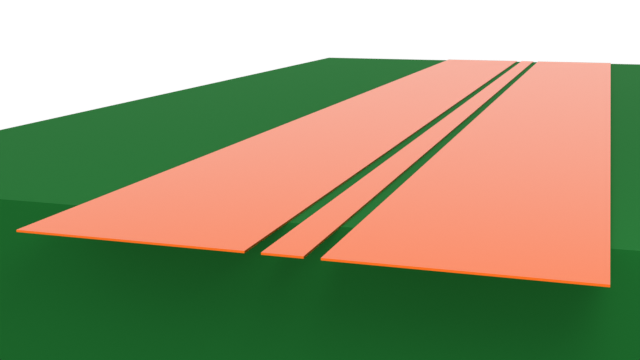
The co-planar waveguide (CPW) is a transmission line commonly used in RF photonics due to its compact planar nature, ease of fabrication, and resistance to external EM interference. In this notebook series, we will examine the CPW in the context of a Mach-Zehnder modulator (MZM).
In part one (this notebook), we will start with a simple CPW on a dielectric substrate. The goal is to demonstrate the typical 2D and 3D workflow in Flex RF.
In part two, we will simulate the CPW with the MZM optical waveguide. A 2D mode analysis will first be performed on the conventional layout, followed by a 3D simulation of a segmented electrode design.
import matplotlib.pyplot as pltimport numpy as npimport flex_rf.tidy3d as rfimport flex_rf.web as webrf.config.logging.level = 'ERROR'Building the simulation
Section titled “Building the simulation”Key parameters
Section titled “Key parameters”We start by defining some key parameters.
# Frequency rangef_min, f_max = (1e9, 65e9)f0 = (f_max + f_min) / 2freqs = np.linspace(f_min, f_max, 201)
# Key dimensions (default units: um)# -- CPW --G = 5  # CPW gapWS = 30  # Signal trace widthWG = 350  # Ground trace widthW_cpw = WS + 2 * (G + WG)  # Total CPW widthT = 1  # Conductor thicknessL = 2000  # Line length (distance between wave ports)# -- Substrate --L_sub, W_sub, H_sub = (L + 200, 2400, 1000)  # Substrate length, width, thickness
Material and Geometry
Section titled “Material and Geometry”The substrate is assumed to be lossless. The metal is assumed to have constant conductivity over the frequency range.
# Material propertiescond = 41  # Conductivity in S/umeps = 4.5  # Relative permittivity, substrate
# Define EM mediumsmed_sub = rf.Medium(permittivity=eps)med_metal = rf.LossyMetalMedium(conductivity=cond, frequency_range=(f_min, f_max))
The CPW geometry is created below.
# Create substratestr_sub_layer = rf.Structure(    geometry=rf.Box(center=(0, -H_sub / 2, 0), size=(W_sub, H_sub, L_sub)),    medium=med_sub,)
# Create CPWgeom_sig = rf.Box(center=(0, T / 2, 0), size=(WS, T, L_sub))geom_gnd1 = rf.Box.from_bounds(rmin=(-WS / 2 - G - WG, 0, -L_sub / 2), rmax=(-WS / 2 - G, T, L_sub / 2))geom_gnd2 = geom_gnd1.reflected((1, 0, 0))geom_cpw = rf.GeometryGroup(geometries=[geom_sig, geom_gnd1, geom_gnd2])str_cpw = rf.Structure(geometry=geom_cpw, medium=med_metal)
# Full structure liststructure_list = [str_sub_layer, str_cpw]
Grid and Boundary
Section titled “Grid and Boundary”The simulation domain is surrounded by Perfectly Matched Layers (PMLs) by default. The simulation domain size is defined below.
# Define simulation sizesim_LX = W_subsim_LY = 2 * H_subsim_LZ = L_subThe simulation grid is automatically generated based on the minimum wavelength in the respective dielectric medium. In RF problems, the field is especially enhanced near metallic structures. For more accurate results, we use the LayerRefinementSpec feature to automatically refine the grid near metallic edges and corners.
# Define Layer refinement speclr_spec = rf.LayerRefinementSpec.from_structures(    structures=[str_cpw],    min_steps_along_axis=5,    corner_refinement=rf.GridRefinement(dl=T / 5, num_cells=2),)
# Overall grid specificationgrid_spec = rf.GridSpec.auto(    min_steps_per_wvl=15,    wavelength=rf.C_0 / f_max,    layer_refinement_specs=[lr_spec],)
Monitors
Section titled “Monitors”We define a field monitor in the CPW plane for visualization purposes below.
mon_1 = rf.FieldMonitor(    center=(0, 0, 0), size=(rf.inf, 0, rf.inf), freqs=[f0], name="field cpw plane")
monitor_list = [mon_1]
Wave Ports
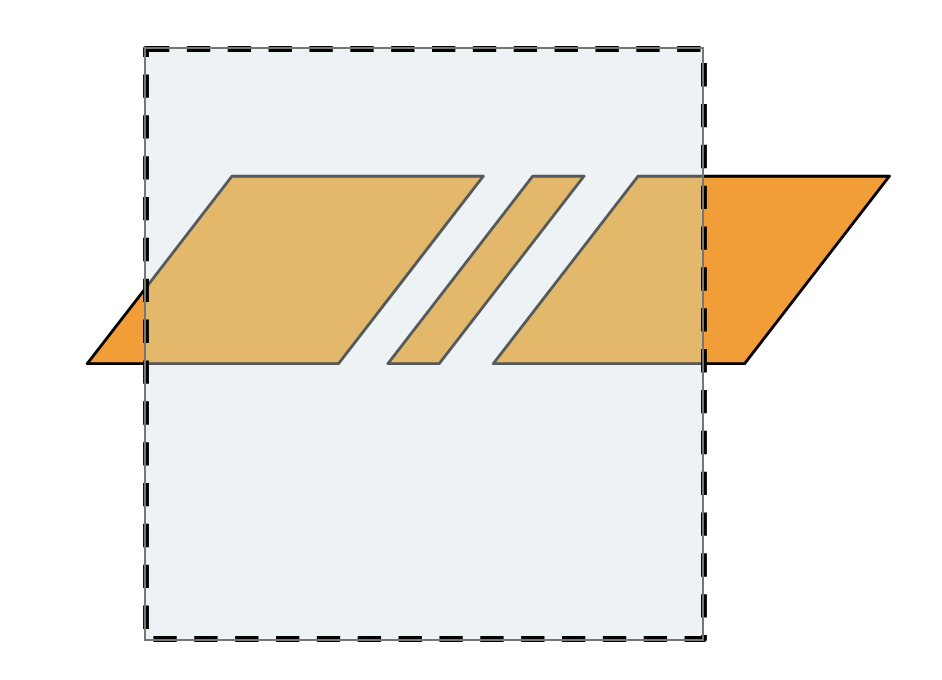
Section titled “Wave Ports”Wave ports are used to excite the CPW. It is important to ensure that the width of the ports are slightly smaller than the overall width spanned by the CPW side ground traces. In the image below, the recommended wave port positioning is demarcated by dashed lines, and the CPW metal structures are in copper.
# Define wave portsWP1 = rf.WavePort(    center=(0, 0, -L / 2),    size=(W_cpw - 50, W_cpw - 50, 0),    direction="+",    name="WP1",)WP2 = WP1.updated_copy(    center=(0, 0, L / 2),    direction="-",    name="WP2",)
# List of all portsport_list = [WP1, WP2]
Define Simulation and TerminalComponentModeler
Section titled “Define Simulation and TerminalComponentModeler”The base Simulation object contains information about the overall simulation environment. The TerminalComponentModeler object is used in 3D simulations to conduct a port and frequency sweep in order to obtain the full S-parameter matrix.
# Define base simulationsim = rf.Simulation(    size=(sim_LX, sim_LY, sim_LZ),    grid_spec=grid_spec,    structures=structure_list,    monitors=monitor_list,    run_time=0.52e-9,    shutoff=1e-7,)
# Define TerminalComponentModelertcm = rf.TerminalComponentModeler(    simulation=sim,    ports=port_list,    freqs=freqs,    run_only=["WP1@0"],)
The run_only parameter allows the user to sweep only a subset of the available port excitations. In this case, we only want to run wave port WP1 and mode index 0 (the only mode). This is because the structure is symmetric, so there is no need to solve for port WP2.
Visualization
Section titled “Visualization”We can inspect the grid to ensure a suitable level of refinement. The plots below show the full CPW (left) and the CPW gap (right). The green region is the wave port and the grid lines are in gray. The purple lines indicate regions of grid refinement.
# Inspect transverse gridfig, ax = plt.subplots(1, 2, figsize=(10, 6))tcm.plot_sim(z=-L / 2, ax=ax[0], monitor_alpha=0)sim.plot_grid(z=-L / 2, ax=ax[0], hlim=(-500, 500), vlim=(-500, 500))sim.plot(z=-L / 2, ax=ax[1], monitor_alpha=0)sim.plot_grid(z=-L / 2, ax=ax[1], hlim=(10, 30), vlim=(-10, 10))plt.show()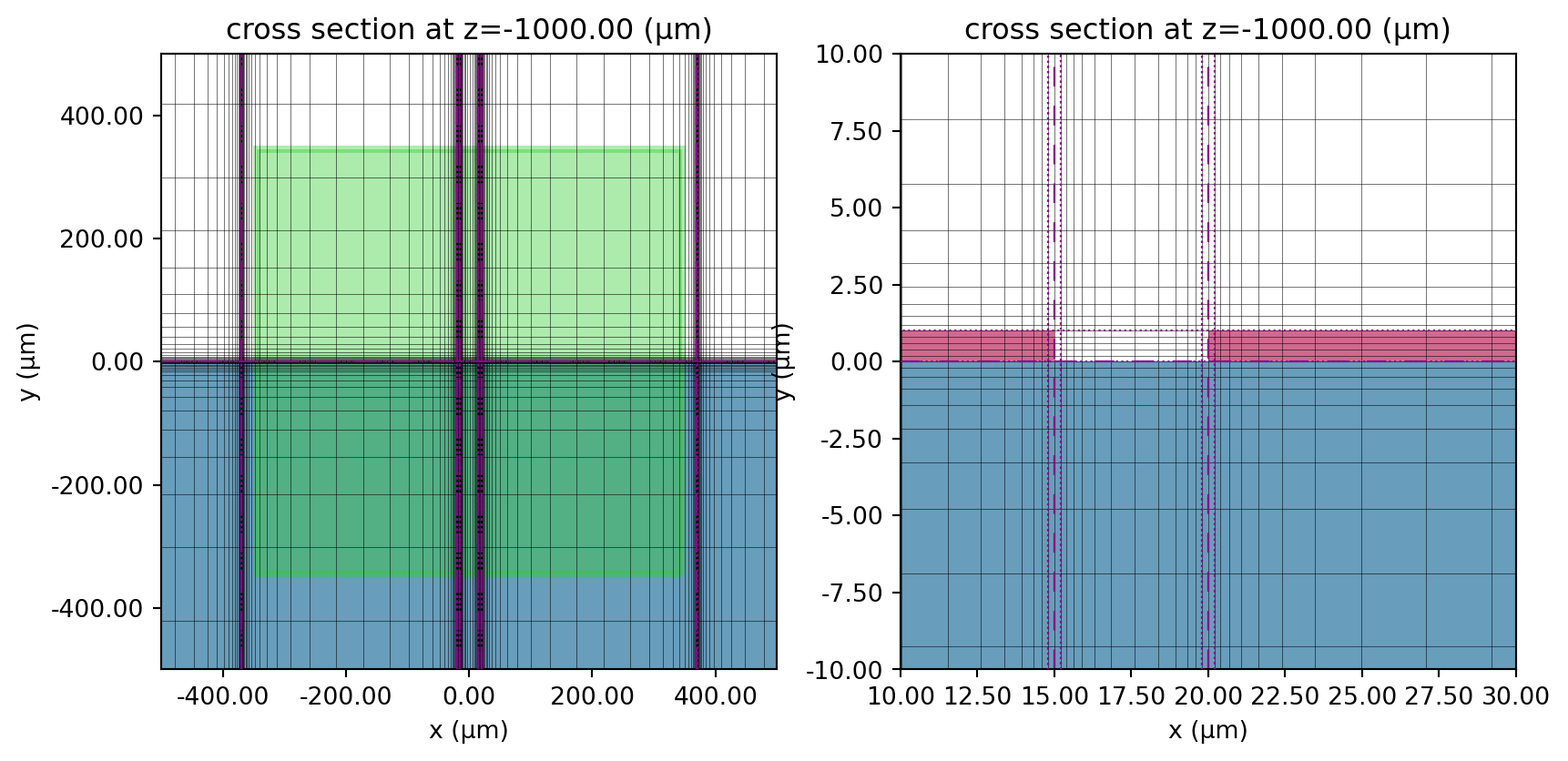
# Plot top view and wave ports (green/blue)fig, ax = plt.subplots(figsize=(12, 5))sim.plot_grid(y=0, ax=ax)tcm.plot_sim( y=0.0, ax=ax, monitor_alpha=0, vlim=(-sim_LZ / 2, sim_LZ / 2), hlim=(-W_cpw * 0.6, 0.6 * W_cpw))ax.set_aspect(0.2)plt.show()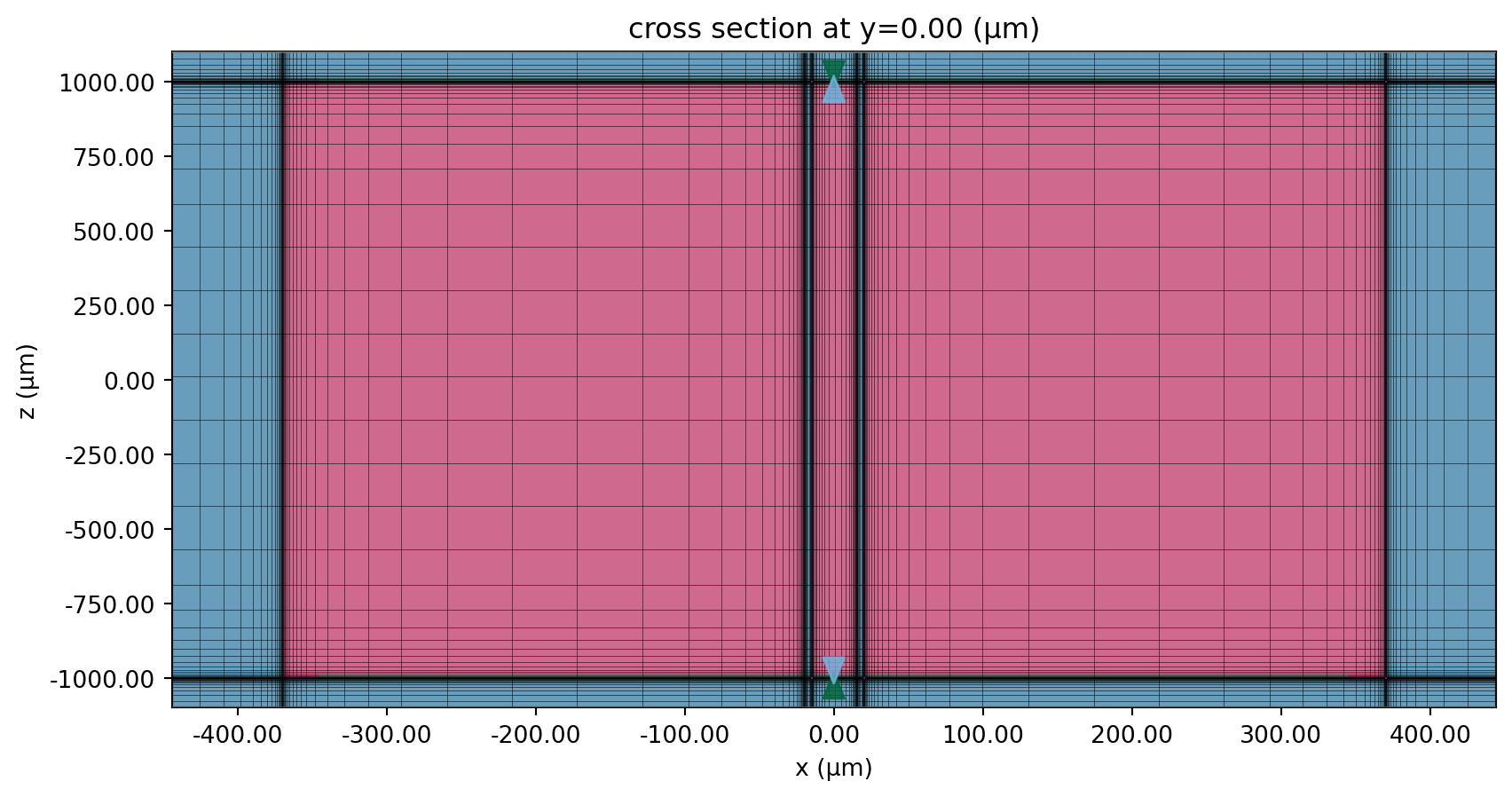
2D Analysis
Section titled “2D Analysis”In this section, we will perform a 2D mode analysis on the CPW and extract key transmission line parameters.
Run Mode Solver
Section titled “Run Mode Solver”The 2D mode analysis is performed with a ModeSolver object. We can easily create one from the wave port using the to_mode_solver() method.
# Obtain mode solver from wave portmode_solver = WP1.to_mode_solver(simulation=sim, freqs=np.linspace(f_min, f_max, 51))We run the mode solver below.
# Run mode solvermode_data = web.run(mode_solver, task_name="CPW mode solver", path="data/WP1_mode_data.hdf5", verbose=False)Mode Profile
Section titled “Mode Profile”First, let us examine the mode profile. The left plot depicts while the right plot shows the field magnitude in dB.
# Preview mode fieldfig, ax = plt.subplots(1, 2, figsize=(10, 4), tight_layout=True)mode_solver.plot_field(field_name="Ex", val="real", f=f_max, mode_index=0, ax=ax[0])mode_solver.plot_field( field_name="E", val="abs^2", scale="dB", f=f_max, mode_index=0, ax=ax[1], vmin=-40, vmax=0)for axis in ax: axis.set_xlim(-200, 200) axis.set_ylim(-200, 200)plt.show()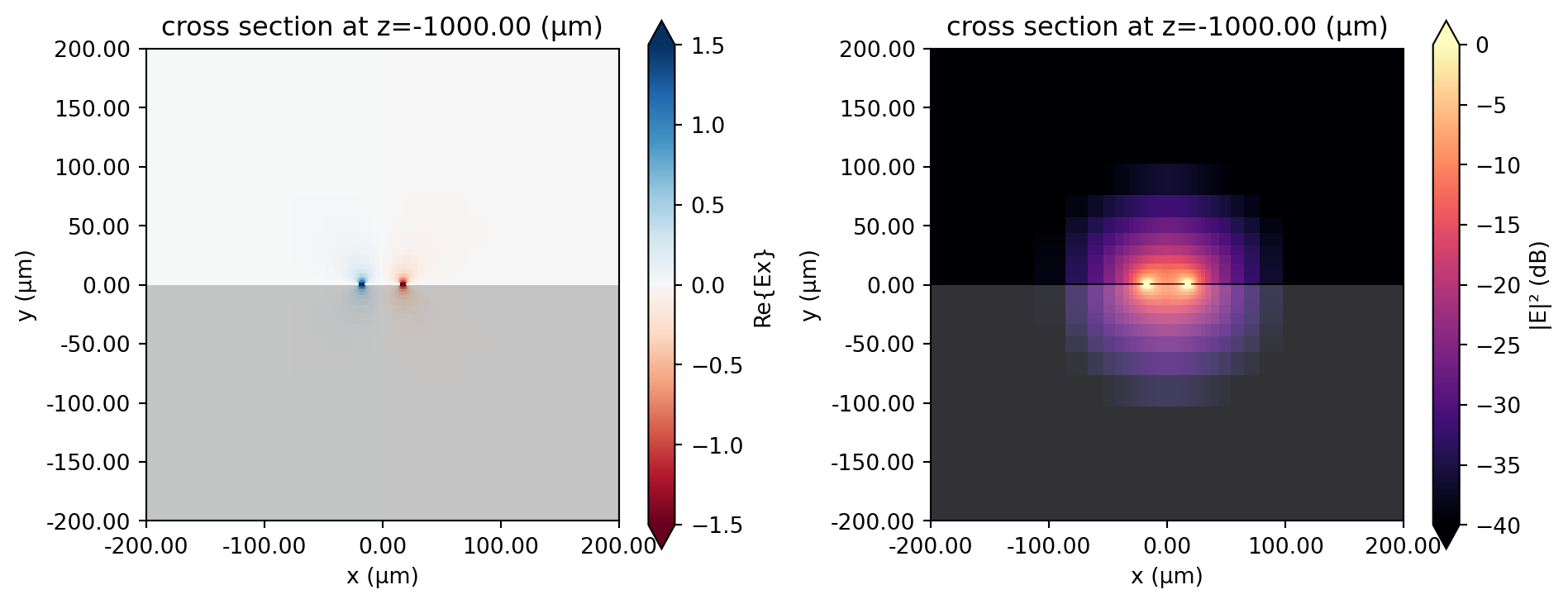
Effective Index, Loss, and Line Impedance
Section titled “Effective Index, Loss, and Line Impedance”The key properties that determine a guided mode are effective index , attenuation , and characteristic impedance . We demonstrate how to obtain those values below. We also demonstrate how to extract the complex propagation constant . Note the use of the -np.conjugate() operation to convert from physics phase convention (used in Flex RF) to engineering convention.
# Gather alpha, neff from mode solver resultsneff_mode = mode_data.modes_info["n eff"].squeeze()alphadB_mode = mode_data.modes_info["loss (dB/cm)"].squeeze()# Get gamma in 1/mmgamma_mode = -np.conjugate(mode_data.gamma.isel(mode_index=0)) * 1e-3The characteristic line impedance is retrieved from the mode solver data as well.
# Retrieve the characteristic impedance from the mode impedance.Z0_mode = np.conjugate(mode_data.transmission_line_data.Z0.isel(mode_index=0)).squeeze()We plot the key transmission line metrics below.
# Comparison plotsfig, ax = plt.subplots(3, 1, figsize=(8, 8), tight_layout=True)ax[0].set_title("Effective index")ax[0].plot(neff_mode.f/1e9, neff_mode)ax[1].set_title("Attenuation (dB/cm)")ax[1].plot(alphadB_mode.f/1e9, alphadB_mode)ax[2].set_title("Real impedance (Ohm)")ax[2].plot(Z0_mode.f/1e9, np.real(Z0_mode))for axis in ax: axis.grid() axis.set_xlabel("f (GHz)")plt.show()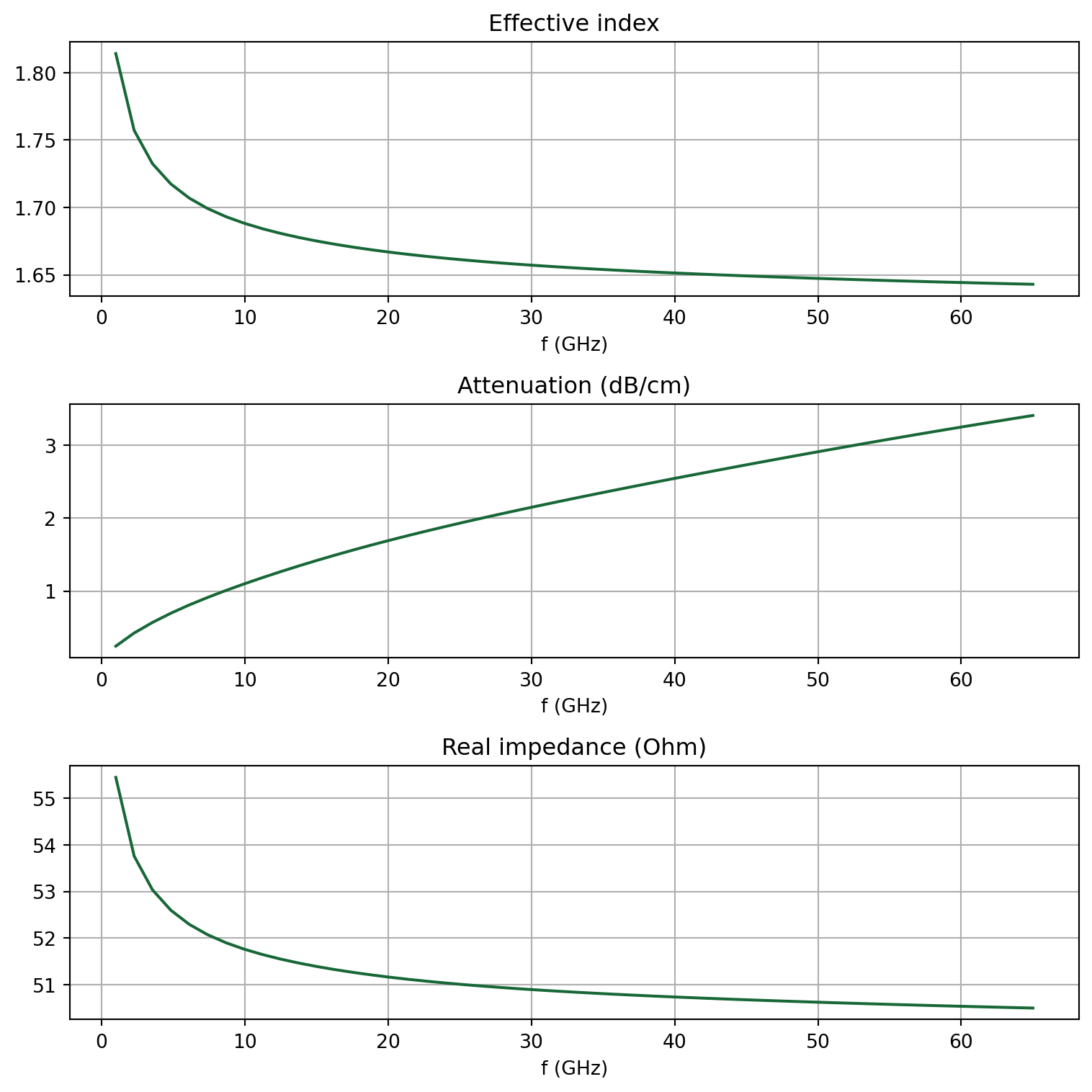
Distributed RLCG transmission line parameters
Section titled “Distributed RLCG transmission line parameters”Using the complex propagation constant and the line impedance , we can calculate the RLCG parameters using the following relationships:
where . Since the dielectric is lossless, we can omit .
R_mode = np.real(gamma_mode * Z0_mode)# Ohm/mmL_mode = np.imag(gamma_mode * Z0_mode) / (2 * np.pi * gamma_mode.f) # H/mmC_mode = np.imag(gamma_mode / Z0_mode) / (2 * np.pi * gamma_mode.f) # F/mmWe plot below.
# Plot RLCfig, ax = plt.subplots(1,3 , figsize=(10, 3), tight_layout=False)ax[0].plot(R_mode.f / 1e9, R_mode)ax[1].plot(L_mode.f / 1e9, L_mode * 1e9)ax[2].plot(C_mode.f / 1e9, C_mode * 1e12)titles = ["R (Ohm/mm)", "L (nH/mm)", "C (pF/mm)"]for ii, title in enumerate(titles): ax[ii].set_title(title) ax[ii].set_xlabel("f (GHz)") ax[ii].grid()plt.show()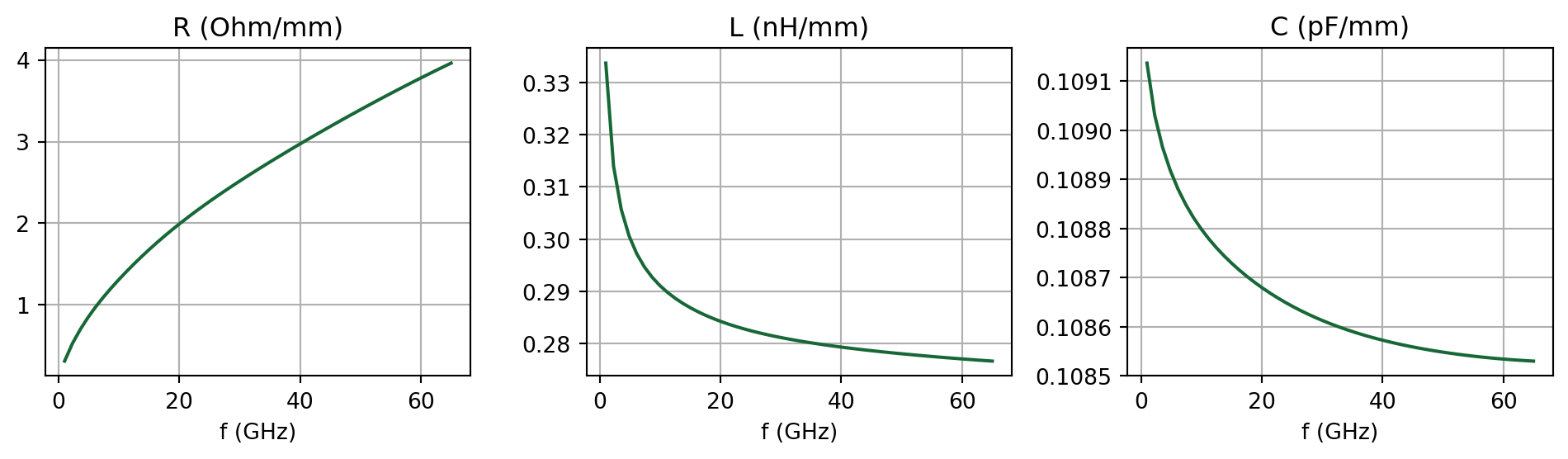
3D Analysis
Section titled “3D Analysis”Run Simulation
Section titled “Run Simulation”Let us simulate a short section of the CPW to demonstrate the 3D workflow. First, the grid resolution can be reduced from the 2D case. This is because S-parameters generally converge much more quickly than modal parameters. Below, we redefine the grid specification for the 3D case.
# Layer refinement speclr_spec_3d = rf.LayerRefinementSpec.from_structures(    structures=[str_cpw],    min_steps_along_axis=2,    corner_refinement=rf.GridRefinement(dl=G / 2, num_cells=2),)
# Overall grid specificationgrid_spec_3d = rf.GridSpec.auto(    min_steps_per_wvl=20,    wavelength=rf.C_0 / f_max,    layer_refinement_specs=[lr_spec_3d],)
We make an updated copy of the base Simulation and TerminalComponentModeler using the reduced grid specification.
sim_3d = sim.updated_copy(grid_spec=grid_spec_3d)tcm_3d = tcm.updated_copy(simulation=sim_3d)The simulation is executed below.
tcm_data = web.run(tcm_3d, task_name="CPW 3D", path="data/tcm_data_cpw.hdf5", verbose=False)S-parameters
Section titled “S-parameters”The S-matrix can be calculated using the smatrix() method from the TerminalComponentModelerData instance tcm_data returned by web.run().
smat = tcm_data.smatrix()Below, we define some convenience functions to extract the individual entries. The port_in and port_out coordinates are used to specify the port name/index. Note the use of np.conjugate() to convert the S-parameter from the physics phase convention to the standard electrical engineering convention.
def sparam(i, j):    return np.conjugate(smat.data.isel(port_in=j - 1, port_out=i - 1))
def sparam_dB(i, j):    return 20 * np.log10(np.abs(sparam(i, j)))
The insertion and return losses are shown below.
fig, ax=plt.subplots(2,1,figsize=(8, 6), tight_layout=True)ax[0].plot(freqs/1e9, sparam_dB(2,1), label='S21')ax[0].set_title('Insertion loss')ax[1].plot(freqs/1e9, sparam_dB(1,1), label='S11')ax[1].set_title('Return loss')for axis in ax: axis.grid() axis.set_ylabel('dB') axis.set_xlabel('f (GHz)')plt.show()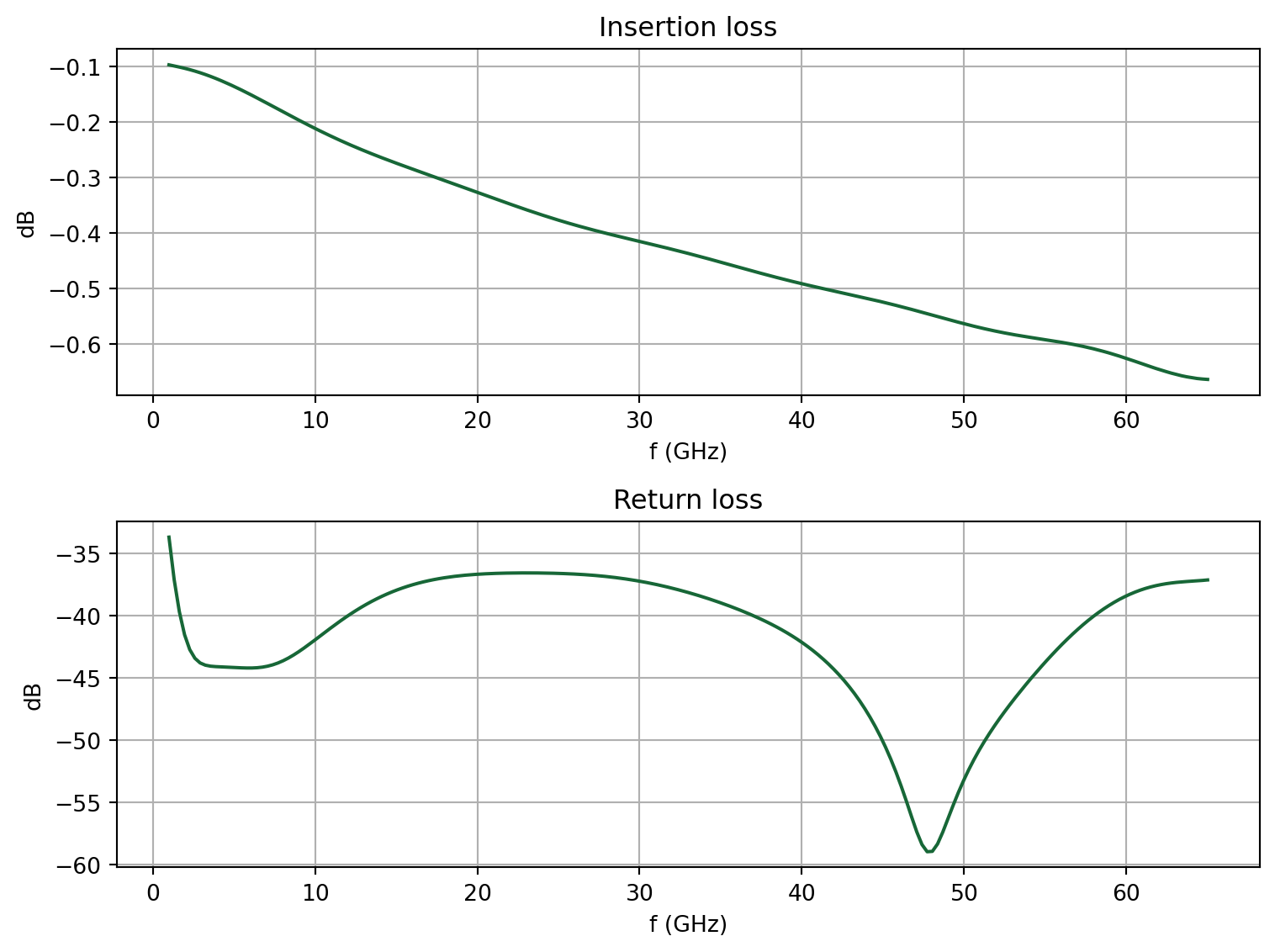
Field profile
Section titled “Field profile”To access the field monitor data, we need to first load the simulation dataset from the TerminalComponentModelerData instance. The simulation data is stored in a dictionary indexed by keys in the format <port name>@<mode number>. For example, to obtain data for the first (and only) excited mode in wave port 1, we use WP1@0.
# Load monitor datasim_data = tcm_data.data["WP1@0"]Below, we plot the field magnitude in dB just below the CPW metal plane.
fig, ax = plt.subplots(figsize=(10, 8), tight_layout=True)sim_data.plot_field( "field cpw plane", field_name="E", val="abs", scale="dB", f=f0, ax=ax, vmin=-60, vmax=10)ax.set_xlim(-W_cpw / 2, W_cpw / 2)ax.set_ylim(-L / 2, L / 2)plt.show()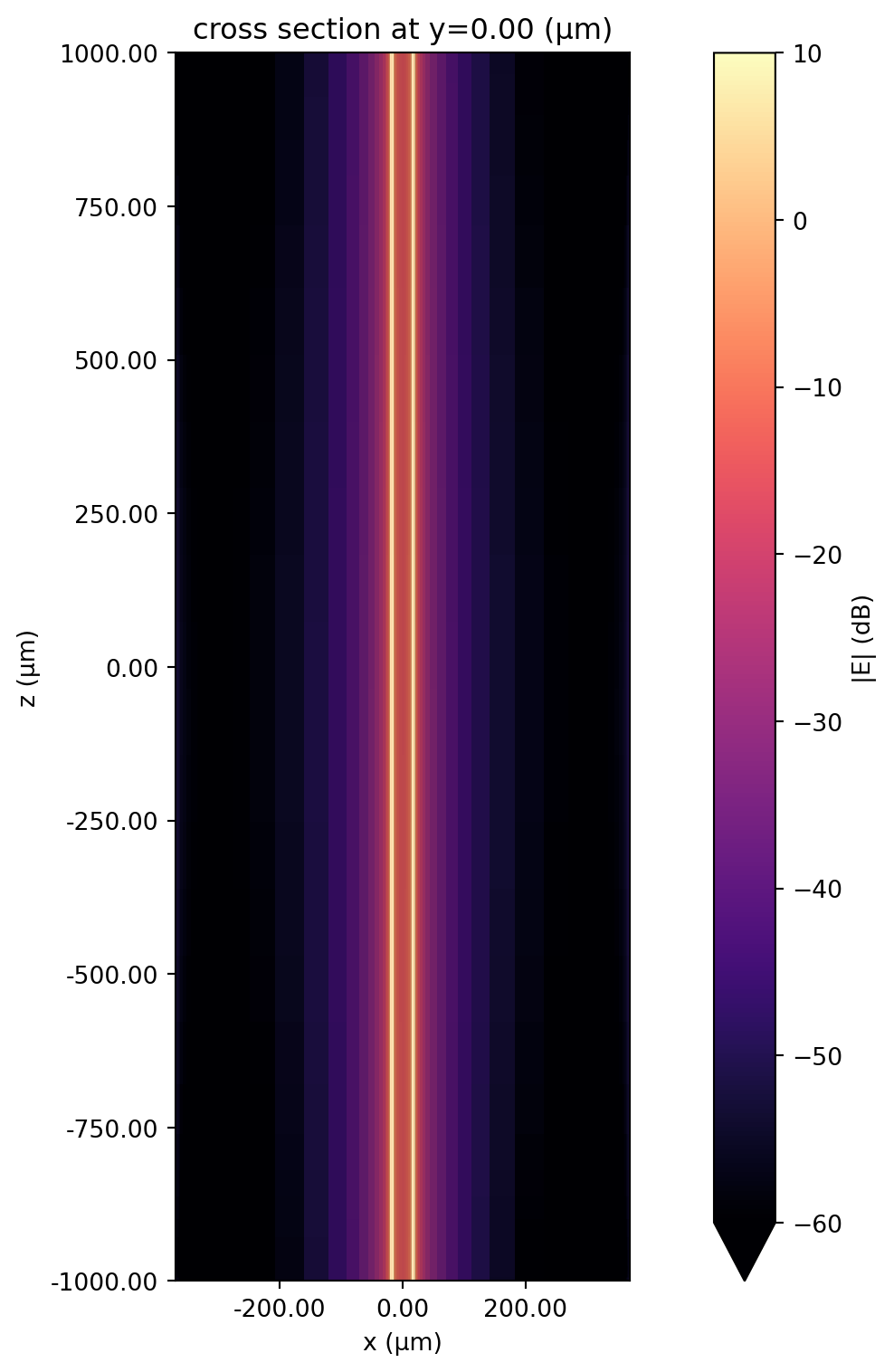
Conclusion
Section titled “Conclusion”In this notebook, we used the basic CPW as an example to demonstrate the typical Flex RF workflow for modeling transmission lines. We calculated and benchmarked key quantities such as effective index, attenuation, characteristic impedance, and S-parameters.
In the next notebook, we will model the CPW in the context of a Mach-Zehnder modulator.