

Company Workspace#
The Company workspace page lets company administrators manage the shared workspace: check that it is enabled, give it the name and logo that members see in the workspace selector, and review who did what inside it.
Accessing the Company Workspace Page#
The page is part of the account settings and is visible only to company administrators.
To open it:
Click your account avatar (top-right corner of the Flow360 web UI).
Select Account from the dropdown menu.
In the left-hand sidebar, click Company workspace.
The entry appears only once the shared workspace has been enabled for your company. Enabling it is done by Flexcompute: contact your Application Engineer. Until then, administrators see the other account settings pages but not this one.
See also
How members switch to the shared workspace and move projects into it is described in Workspaces.
Tabs Overview#
Tab |
Description |
|---|---|
Workspaces |
Shows whether the company workspace is enabled, and lets you set its logo and name. |
Activity |
Log of the actions members performed in the shared workspace, with filters by member, event type and project. |
Workspaces#
Status and identity of the shared workspace.
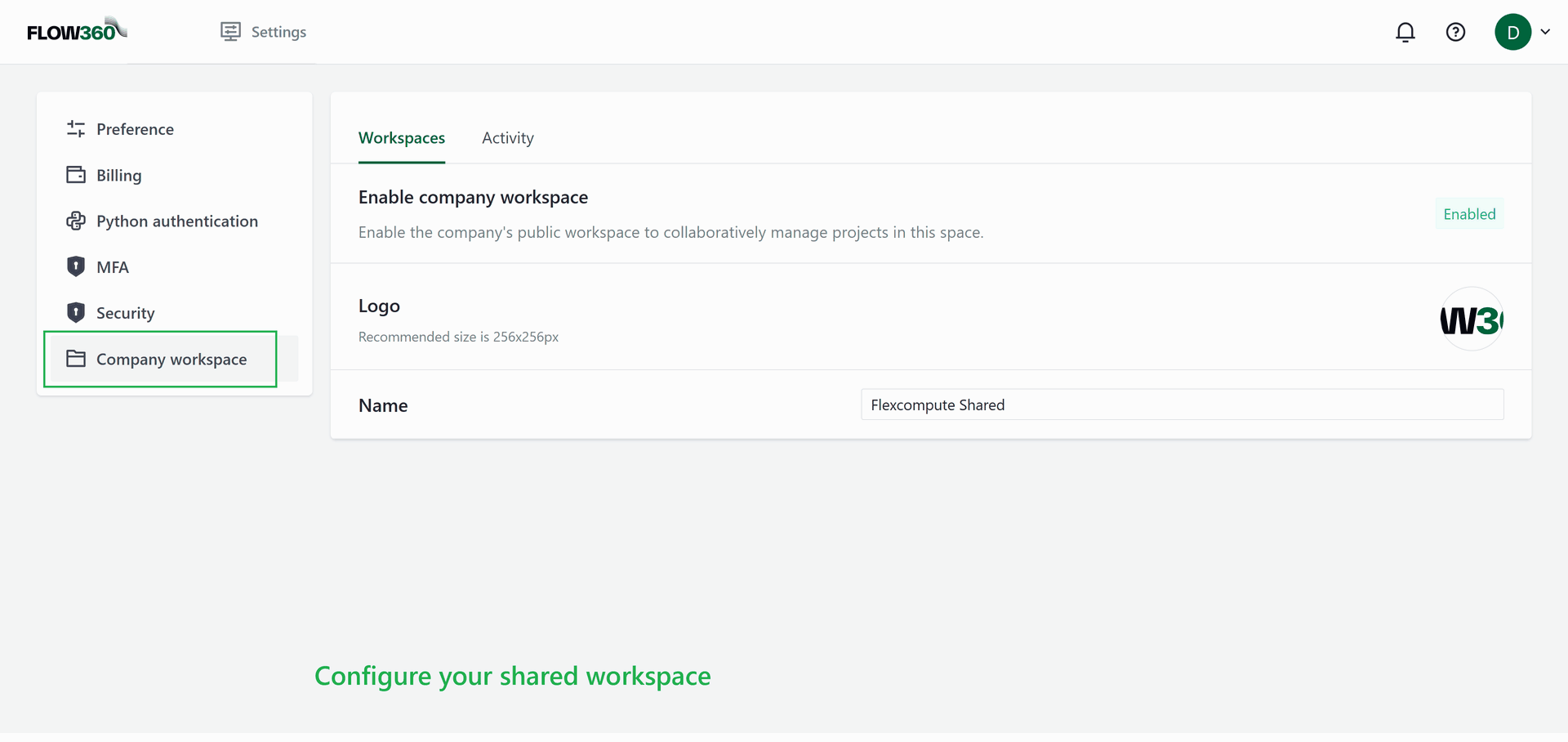
Enable company workspace: a status tag shows Enabled or Disabled. The status itself is managed by Flexcompute and cannot be changed from this page.
Logo: click the logo to upload an image. Images must be smaller than 200 kB; a 256 x 256 pixel image is recommended. The logo identifies the shared workspace in the workspace selector for every member.
Name: the workspace name shown in the selector, up to 100 characters. The change is saved when you leave the field.
Activity#
A chronological log of what happened in the shared workspace.
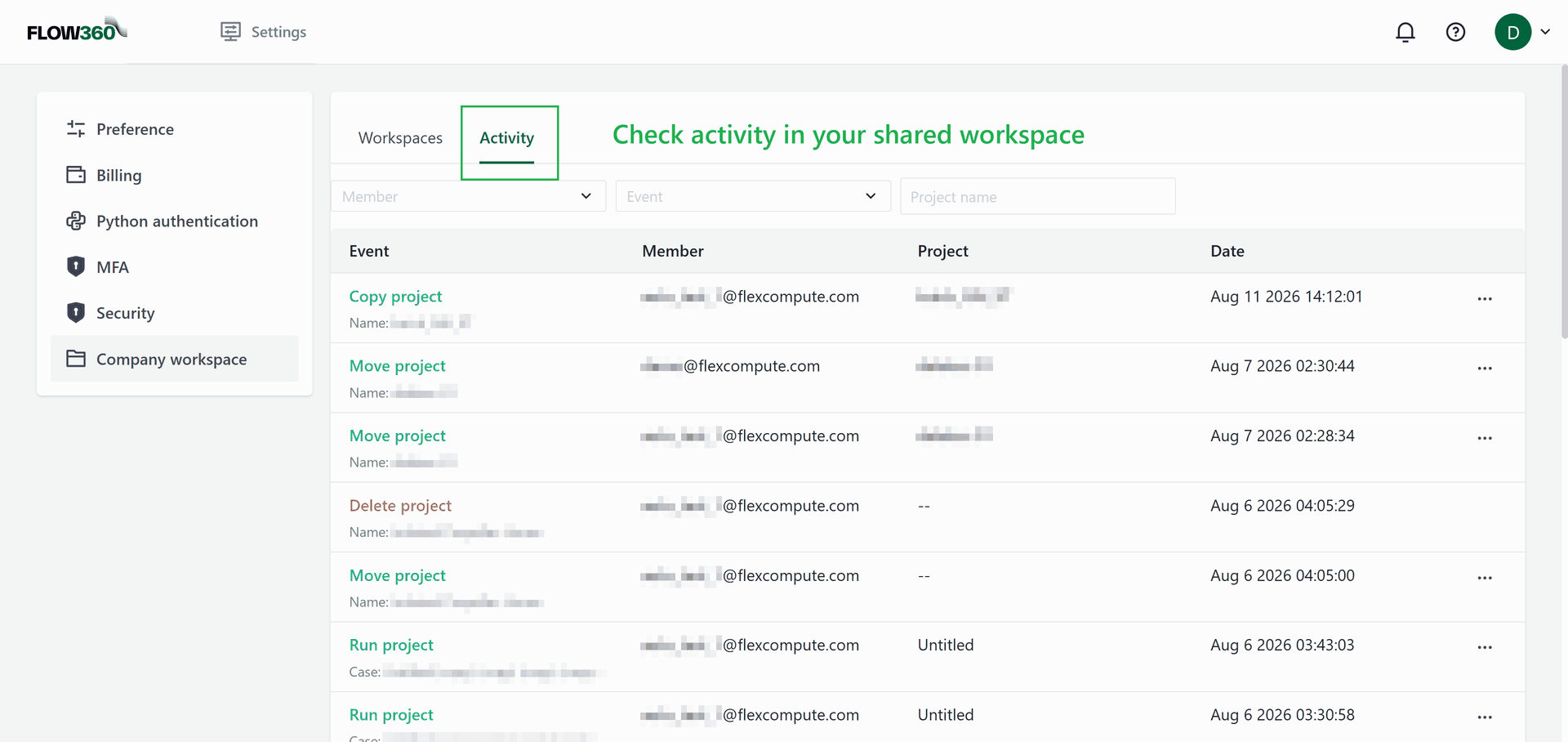
Each entry lists the Event, the Member who performed it, the Project it concerns and the Date. Recorded events include creating, moving, duplicating, running and deleting projects, and creating and deleting folders.
Filters: narrow the log to one member, one event type, or a project name.
Open project: the row menu (⋮) opens the project in the workbench, unless it has since been deleted.
Paging: the table shows 20 entries per page by default; 50 and 100 are also available.