

Workspaces#
A workspace is the top-level container that holds your projects and folders. Every user has a private workspace. Companies can additionally enable a shared workspace, where every member sees and works on the same projects instead of exchanging copies.
Overview#
Workspace |
Who sees it |
Where it appears |
|---|---|---|
Private workspace |
Only you |
Listed under your initials in the workspace selector; its root folder is called Home |
Shared workspace |
Every member of your company |
Listed under the company logo (or a home icon) with the name chosen by your administrator |
The shared workspace is enabled per company. If the workspace selector lists only your private workspace, the shared workspace has not been turned on for your company: contact your Application Engineer to enable it.
See also
The Python API can create projects directly in either workspace. See User Guide: Workspaces and the snippet Submit a Project to a Shared Workspace.
Switching Workspaces#
The workspace selector sits at the top of the left sidebar, below the search entry.
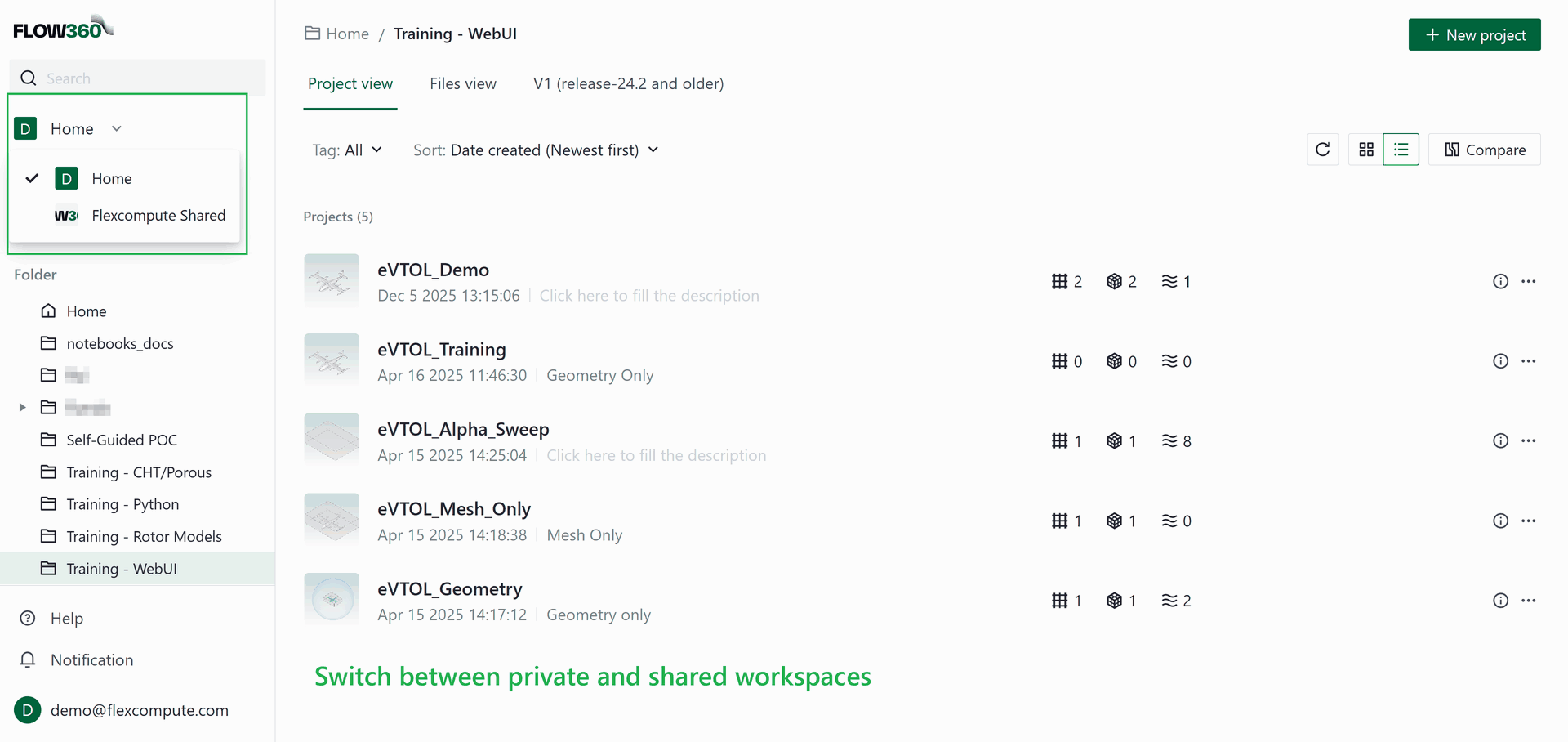
Open the selector and pick a workspace. Everything that lists or creates projects then acts inside the selected workspace:
Dashboard: the Recent projects and the New project button.
Workspace page: the Project view and Files view tabs, together with the folder tree shown in the sidebar.
Search: searches the current workspace by default. When a shared workspace is enabled, the Scope option can search every workspace you have access to, and each result names the workspace it was found in.
The selection is remembered as you move between pages, so you keep working in the same workspace until you switch again.
Note
The V1 (release-24.2 and older) tab of the workspace page is shown only in the private workspace.
Moving Projects Between Workspaces#
Projects can be moved in both directions, from your private workspace into the shared one and back.
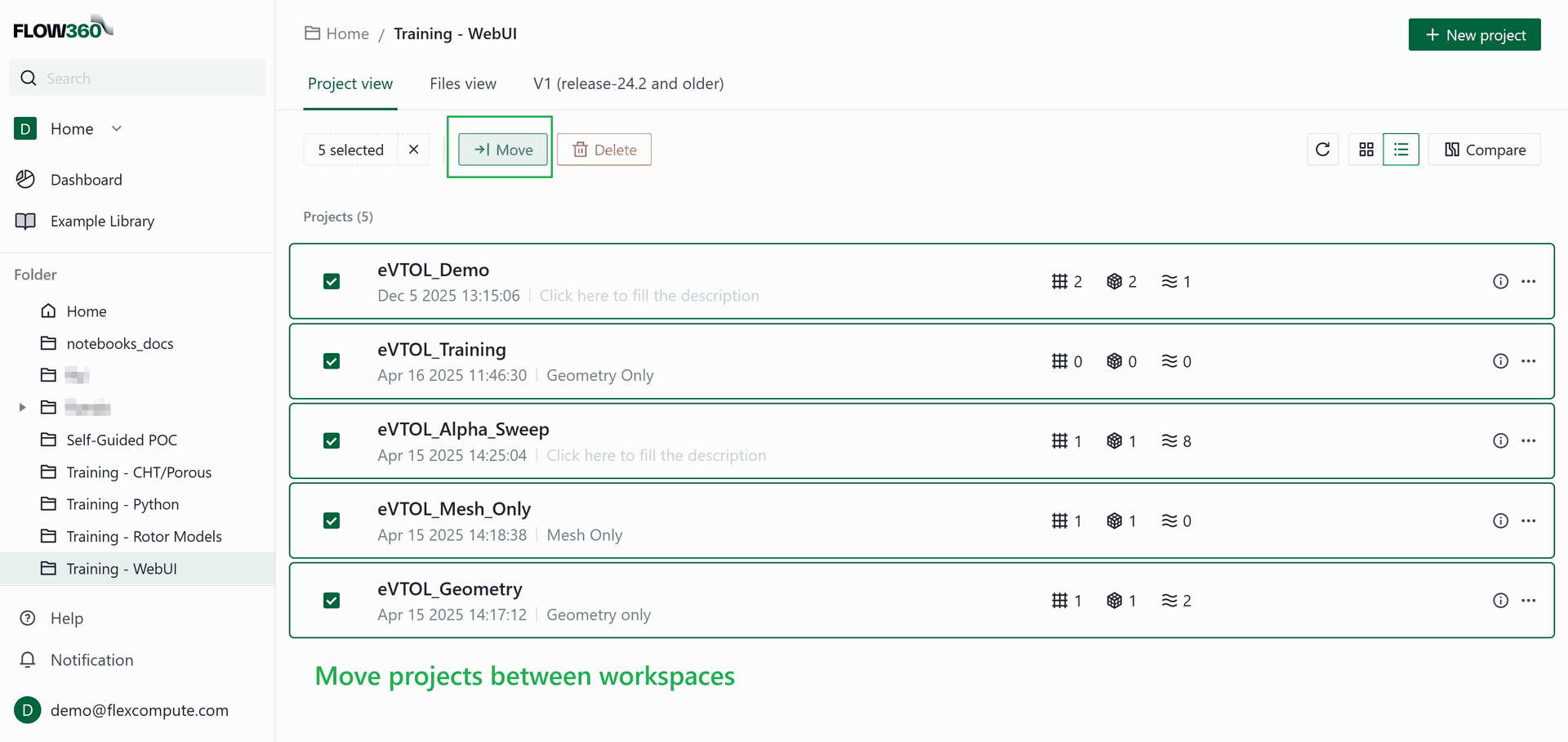
To move projects:
Open the Project view of the workspace that currently holds the project.
Select the project, or several projects, and click Move in the toolbar. A single project can also be moved from its context menu.
In the Move dialog, pick the target workspace at the top of the folder picker, then the destination folder.
Confirm. The project disappears from the source list and shows a Moving label in the target workspace until the transfer completes.
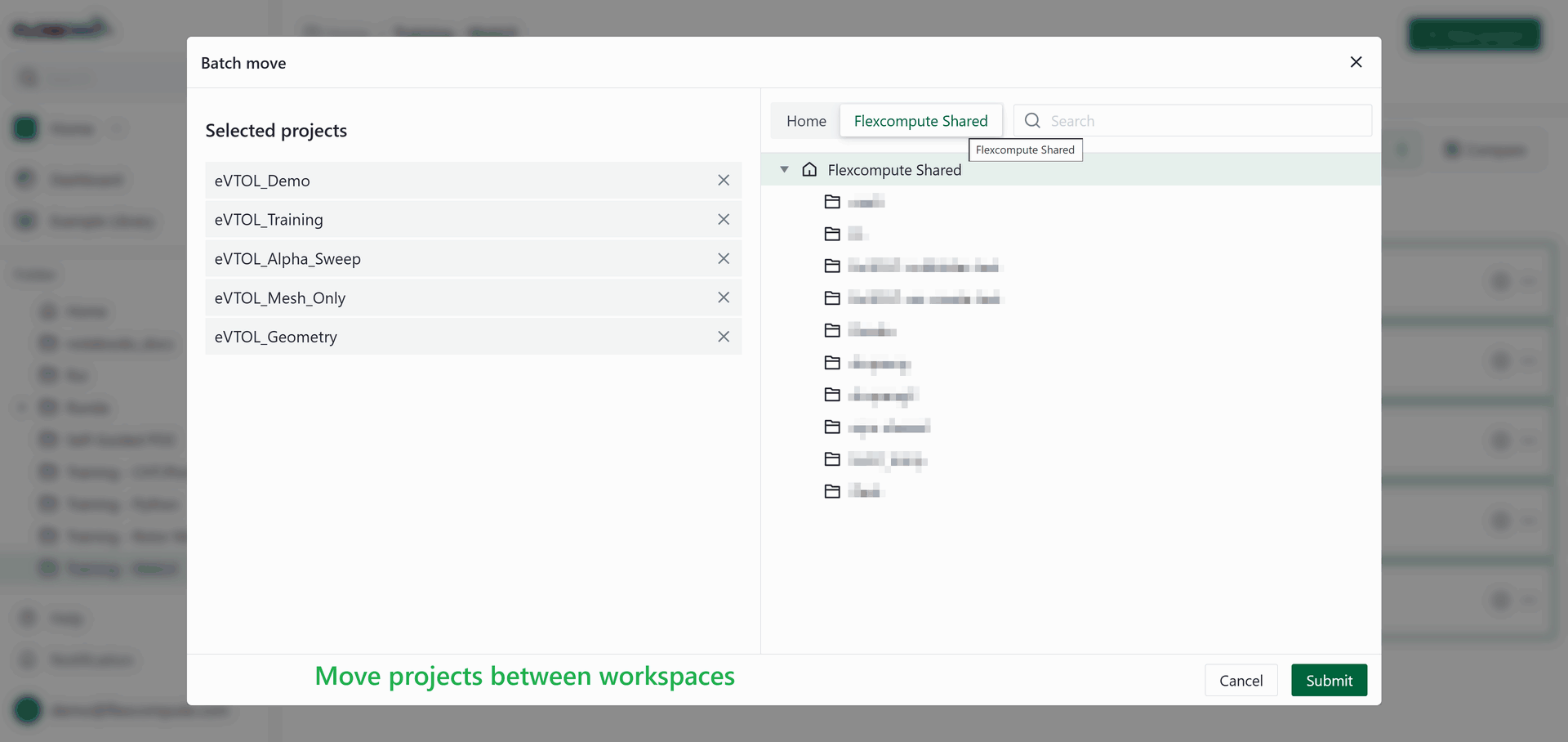
Before the move starts, Flow360 checks each selected project. Projects with active runs, running interpolations, or resources in an error state cannot be moved and are flagged in the dialog; move them once those runs have finished. A batch move accepts up to 50 projects at a time, and reports cannot be moved this way.
The Location field in a project’s details panel offers the same choice of workspace and folder for a single project (see Project settings).