

Viewpoints#
The Viewpoints group contains the list of Viewpoints defined in the Project. Unlike most other items in the Project, Viewpoints can be created and edited even in “View only” mode.
Managing Viewpoints#
You can interact with Viewpoints in the following ways:
Creating Viewpoints#
Click the “+” button to create a new viewpoint based on the current camera position and orientation in the viewer.
Using Viewpoints#
Click on any viewpoint in the list to apply it in the viewer, which will immediately change the camera to that stored position and orientation.
Modifying Viewpoints#
Use the menu next to each viewpoint for additional operations:
Update - Replace the stored camera position and orientation with the current view shown in the viewer.
Rename - Change the name of the viewpoint to something more descriptive.
Delete - Remove the viewpoint from the project.
Exporting and Importing Viewpoints#
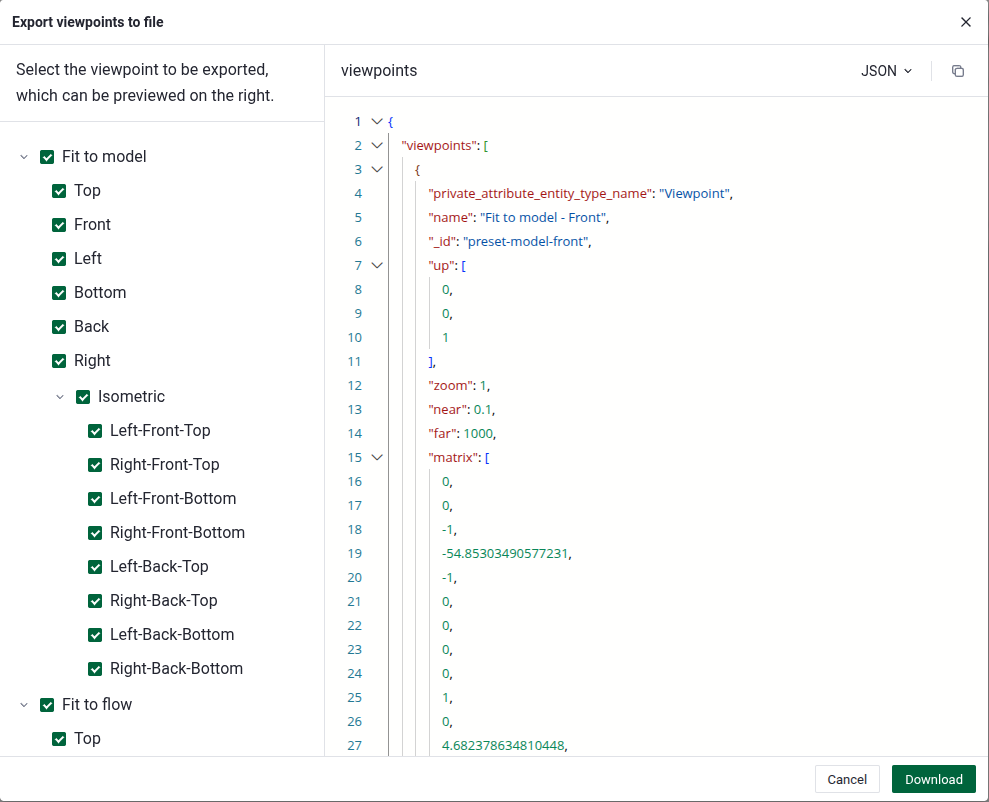
The Viewpoint menu in the bottom-right corner of the viewer has Import viewpoints and Export viewpoints to file entries. The export dialog lists the custom viewpoints and the automatic Fit to model and Fit to flow views, and previews the file for the selected ones before download.
The format menu in the preview switches between JSON, for importing into the Web UI, and Python, which writes each viewpoint as a Camera for Flow360 Python scripts.
Viewpoints and Project Sharing#
Viewpoints are saved with the project, making them a useful tool for:
Highlighting specific features of your geometry or simulation results
Creating standardized views for comparing results across multiple simulations
Guiding other users to important areas when sharing projects